Left Right Audio Test: Check if Your Headphones or Speakers Are Reversed
Run a quick left right audio test to catch swapped channels, mono output, or a silent side before blaming your headphones or speakers.
The HardwareTest.org team builds and reviews browser-based diagnostics for displays, keyboards, mice, audio devices, cameras, controllers, and lightweight system checks. We update pages as browser behavior, user reports, and device support change.
Left Right Audio Test: Check if Your Headphones or Speakers Are Reversed
If audio feels wrong, start here. A quick left/right test tells you whether the problem is swapped channels, mono output, a silent side, or just bad balance.
Run the audio test - play Left, then Right. Each side should play on its own.
This page is for the fast check. If you already know something is wrong and want the longer troubleshooting version, jump to How to Test Left and Right Audio Channels.
How to use the test
- Wear the headphones correctly or sit centered between your speakers.
- Press Left. You should only hear the left side.
- Press Right. You should only hear the right side.
- If both sides play together, or the sound comes from the wrong side, you already have a useful clue.
What the result usually means
Left plays on the right
The channels are reversed.
- Flip the headphones first. It happens more often than people admit.
- If you are using speakers, check that left and right cables are not swapped.
- If you use audio software, look for a channel swap or routing option.
Both buttons play from both sides
That usually means the system is forcing mono audio.
- In Windows, check Settings > Accessibility > Audio > Mono audio.
- On other devices, look for accessibility or audio balance settings.
- Re-run the audio test after turning mono off.
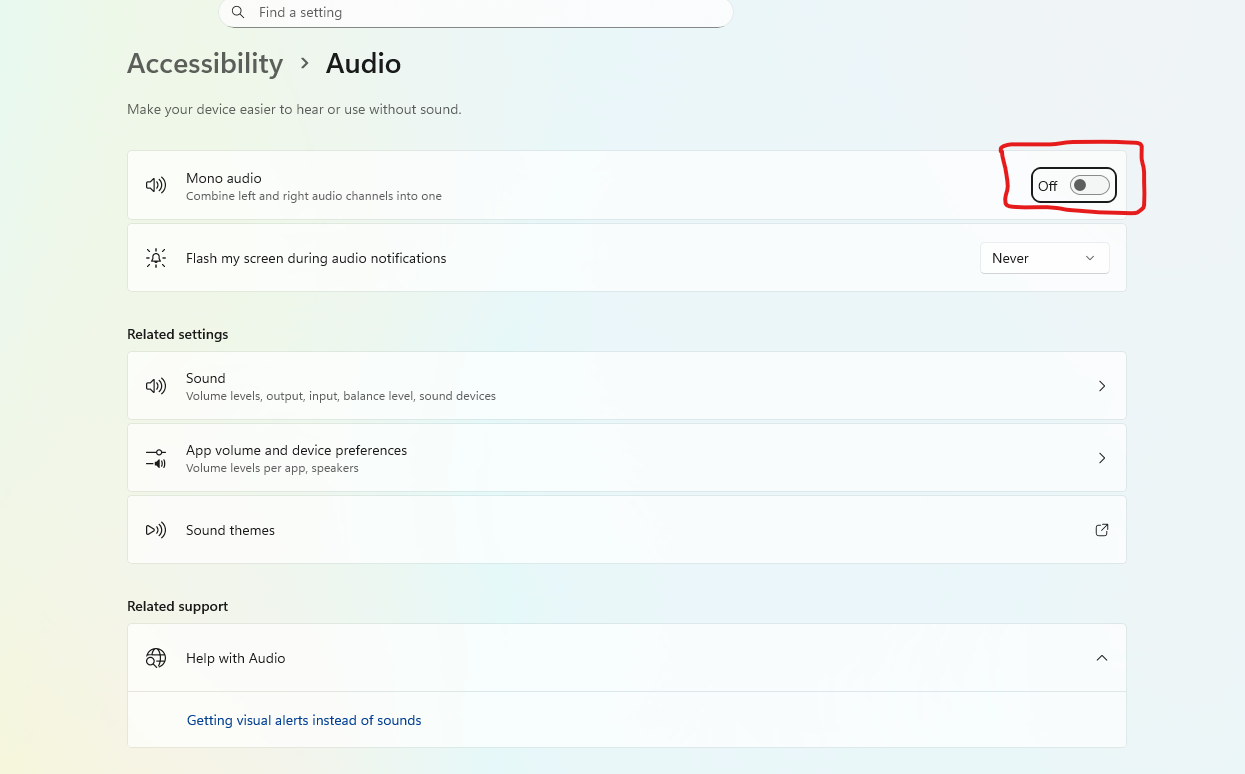
Make sure the Mono audio toggle is off if you want true stereo.
One side is silent
This is usually hardware or connection related.
- Reseat the 3.5 mm plug until it clicks fully into place.
- Try another port or another device.
- If Bluetooth is involved, reconnect and test again.
- If the same side is still dead everywhere, the cable, earbud, or speaker driver may be failing.
One side is quieter
Now you are looking for balance rather than complete failure.
- Check the left/right balance slider in the OS.
- Clean the headphone grille or earbud mesh if one side is muffled.
- Test with another cable if the headphones or speakers use a removable one.
Quick fix checklist
- Turn mono off.
- Center the balance slider.
- Reseat the cable or dongle.
- Test on a second device.
- Check whether the headphones are simply on backwards.
If the quick test shows a problem and you want a full step-by-step diagnosis, go to How to Test Left and Right Audio Channels.
Done with the quick stereo check?
If the channels are correct, you can keep going with:
Ready to Test Your Audio?
Use our free stereo audio tester to confirm left/right channels, mono toggles, and balance in seconds.
Start Sound Test