How to Test Left and Right Audio Channels on Headphones and Speakers
Use a browser stereo test, Windows or macOS checks, and a few hardware swaps to find out whether your problem is reversed channels, mono output, a dead side, or bad balance.
The HardwareTest.org Editorial Team maintains the site's browser-based diagnostics and troubleshooting guides. We verify tool interfaces and reproduction steps in current browsers, document what a browser can and cannot measure, add original screenshots, and link technical claims to primary sources.
Reproducible review
How we checked this guide
We verified the left/right controls, safe-volume wording, and responsive layout. The screenshot review did not measure acoustic output or hearing ability.
- Checked
- July 26, 2026
- Environment
- Desktop screenshots: Microsoft Edge 150.0.4078.83 · Windows desktop build 10.0.26200 · Desktop viewport: 1440 x 1000 · Responsive screenshots: current Chrome with a 390 x 844 viewport override
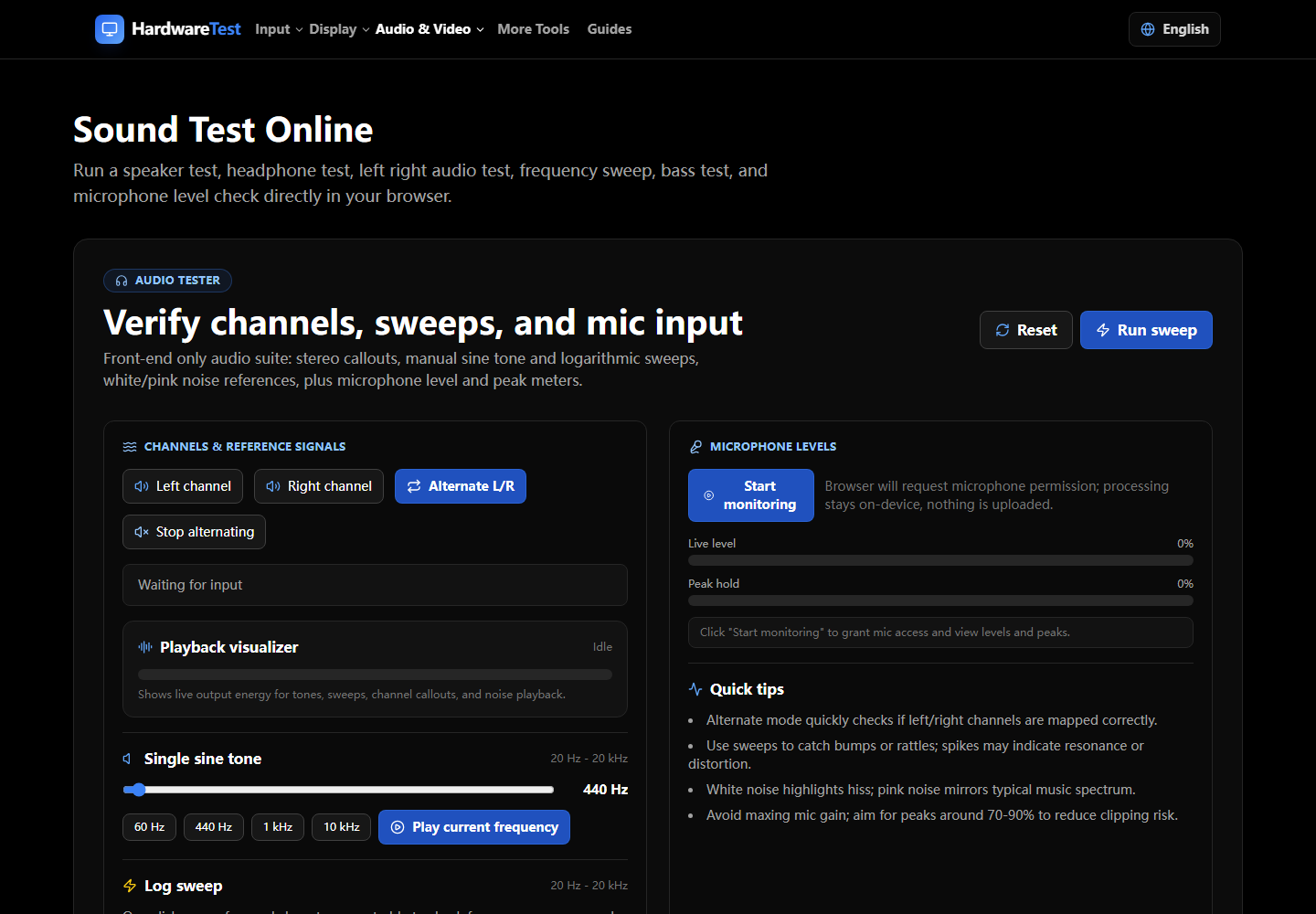
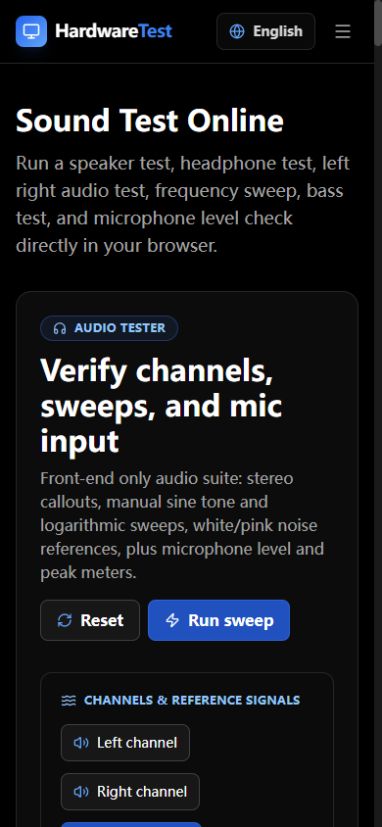
Play an isolated left signal, then an isolated right signal. Correct stereo sends each signal only to the named side. If both play in both ears, check mono audio. If the sides are reversed, inspect speaker placement, cable routing, and app or interface mapping.
Begin with the Sound Test at a comfortable volume.
One-minute channel test
- Put headphones on in the marked L/R orientation or sit centered between the speakers.
- Lower the system volume before starting.
- Play Left and confirm that only the left side responds.
- Play Right and confirm that only the right side responds.
- Repeat with the operating system's speaker test if the result is unexpected.
- Compare a second output device or cable to see where the problem follows.
Do not use maximum volume. Channel routing does not require a loud signal.
Match the symptom
| Symptom | Check first |
|---|---|
| Left and right are reversed | Headphone orientation, speaker cables, interface routing, app mapping |
| Both buttons play equally in both ears | Mono-audio accessibility setting or a mono connection |
| One side is silent | Balance, loose connector, cable, driver, amplifier channel, or failed transducer |
| One side is quieter | Balance control, obstruction, partial cable fault, or hardware wear |
| Browser and OS tests disagree | Browser output device, spatial processing, extension, or app routing |
Confirm in the operating system
Windows exposes output-device settings and, for supported devices, left/right balance controls. macOS Audio MIDI Setup can play individual speaker test tones and assign channels. Center the balance control and temporarily disable mono audio before repeating the browser test.
Bluetooth headsets can switch profiles when a microphone is active. Close voice-chat apps, reconnect the device, and confirm the selected output. For microphone permission or input issues, use the microphone troubleshooting guide.
What the browser test proves
The test verifies that the browser is sending separate left and right content through its current output path. It does not prove speaker frequency response, phase alignment, amplifier quality, hearing symmetry, or the wiring inside an external audio interface. The Web Audio API provides channel-processing building blocks, but the operating system and hardware still determine the final route.
If channels are correct but a driver rattles or sounds distorted, use the Speaker Test or Headphone Test at a safe level. Swap one component at a time so the fault follows either the output device, cable, port, or computer.
Primary sources
Technical claims are checked against the following vendor or platform documentation.
- ChannelSplitterNode — MDN Web Docs
- Set up external speakers for stereo or surround sound in Audio MIDI Setup on Mac — Apple Support
- Fix Bluetooth audio only playing in one channel — Microsoft Support
Ready to Test Your Audio?
Use our free stereo audio tester to confirm left/right channels, mono toggles, and balance in seconds.
Start Sound Test