How to Test a Used Monitor Before Buying
A practical used-monitor checklist: check pixels, backlight bleed, refresh rate, ports, scratches, and return risk before you hand over money.
The HardwareTest.org Editorial Team maintains the site's browser-based diagnostics and troubleshooting guides. We verify tool interfaces and reproduction steps in current browsers, document what a browser can and cannot measure, add original screenshots, and link technical claims to primary sources.
Reproducible review
How we checked this guide
We verified the two browser tools used in this checklist. The review did not inspect a seller's physical monitor, so buyers must reproduce every hardware step before purchase.
- Checked
- July 26, 2026
- Environment
- Desktop screenshots: Microsoft Edge 150.0.4078.83 · Windows desktop build 10.0.26200 · Desktop viewport: 1440 x 1000 · Responsive screenshots: current Chrome with a 390 x 844 viewport override
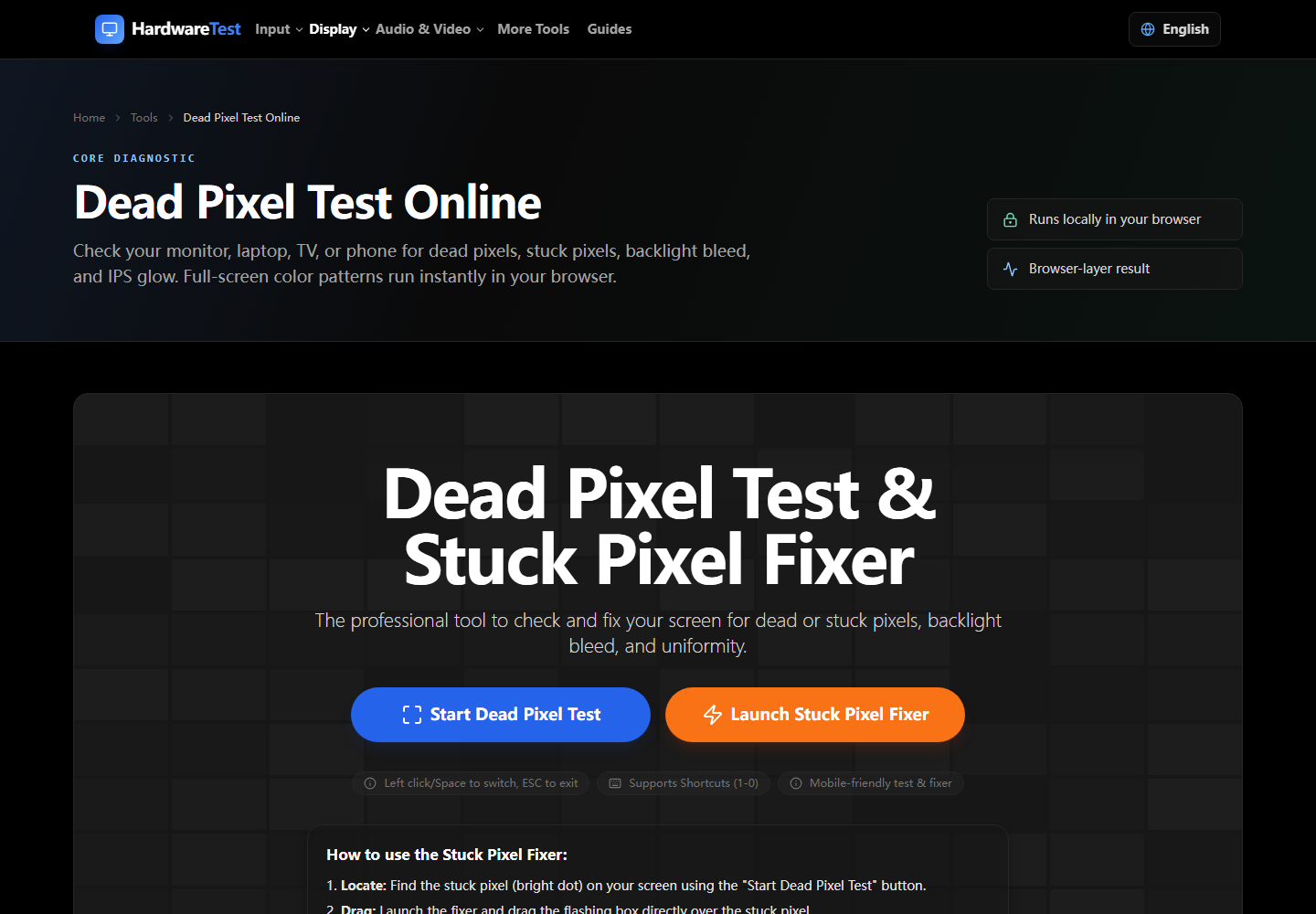
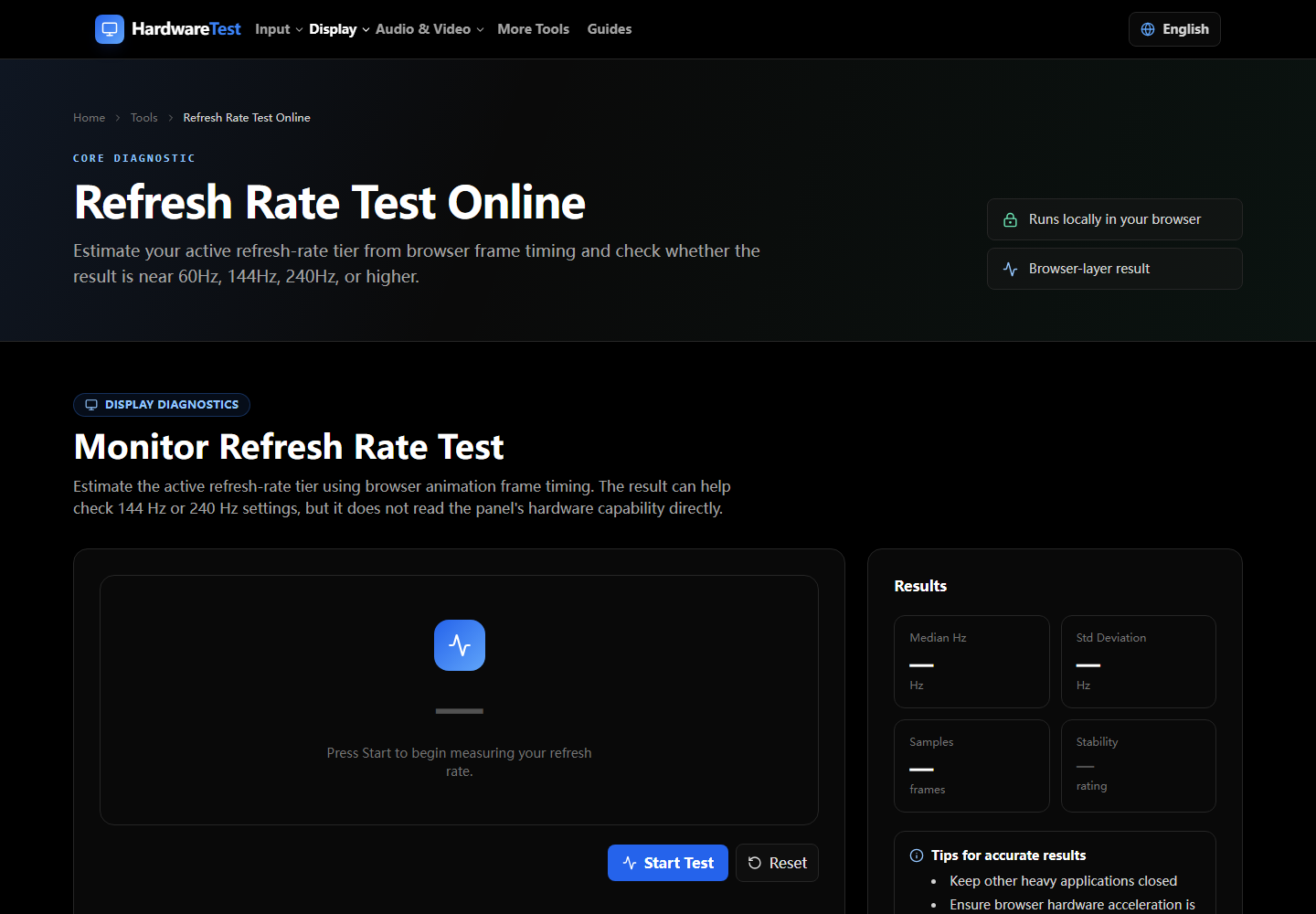
Test a used monitor with your own source device and cable before paying. Verify pixels, uniformity, native resolution, advertised refresh rate, every input you need, the controls, and the physical condition. A wallpaper or short video is not enough to reveal a panel problem.
Bring a laptop that supports the claimed display mode, a known-good cable, and the Dead Pixel Test ready to open.
Ten-minute inspection order
- With the display off, use side lighting to check scratches, coating damage, pressure marks, and cracks.
- Turn it on and show white, black, red, green, blue, and gray in full screen.
- Scan the panel in sections for fixed points, bands, tint, and dirty-looking patches.
- Use the Screen Uniformity Test in normal room light and, if practical, a dimmer condition.
- Select the native resolution and advertised refresh rate in the operating system.
- Confirm the browser timing with the Refresh Rate Test.
- Test every HDMI, DisplayPort, or USB-C input you expect to use.
- Check the on-screen controls, stand, power connector, and cable strain.
- Let the monitor stay on long enough to reveal intermittent dropouts.
- Photograph the serial number and any agreed defect before payment.
Interpret the result conservatively
| Finding | Buying implication |
|---|---|
| Fixed center pixel defect | It will be noticeable in ordinary use; price and decision should reflect that |
| Edge glow visible only from an angle in a dark room | Recheck from the normal seating position |
| Fixed bright patch visible in ordinary light | Treat it as a meaningful uniformity issue |
| Advertised mode is absent with a compatible direct connection | Do not assume a new cable will solve it |
| One input drops out while another is stable | The affected port or signal path may be worn |
| Scratches appear only with the panel off | Decide whether they are visible at your normal brightness |
Avoid misleading evidence
Phone photos can exaggerate black-screen glow and banding. Use photos to document, not to replace an in-person judgment. Test from the distance and brightness you will actually use.
The browser cannot identify HDMI or DisplayPort versions, prove the remaining panel life, or inspect internal capacitors. Check the exact model specification and make sure the computer, adapter, and cable support the claimed resolution and rate.
Walk away when uncertainty is expensive
Do not let the seller rush a basic test. Walk away when the panel has an intrusive defect, the advertised mode cannot be demonstrated, ports are unstable, or the serial/model information does not match the listing. If the display passes, keep the test photos and sale record. For any ambiguous screen symptom, use the screen defect diagnosis before deciding.
Primary sources
Technical claims are checked against the following vendor or platform documentation.
- Dell Display Pixel Guidelines — Dell Support
- Change the refresh rate on your monitor in Windows — Microsoft Support
Ready to Test Your Monitor?
Use our professional dead pixel tester to check your screen for dead pixels, stuck pixels, and display uniformity issues.
Start Dead Pixel Test