Microphone Test Not Working in Your Browser? Permission and Device Fixes
If an online microphone test cannot hear you, check browser permissions, the selected input device, OS privacy settings, exclusive mode, Bluetooth headset profiles, and HTTPS.
The HardwareTest.org Editorial Team maintains the site's browser-based diagnostics and troubleshooting guides. We verify tool interfaces and reproduction steps in current browsers, document what a browser can and cannot measure, add original screenshots, and link technical claims to primary sources.
Reproducible review
How we checked this guide
We verified the microphone test start state, permission guidance, privacy wording, and responsive layout. No recorded audio or microphone-quality measurement was collected for these screenshots.
- Checked
- July 26, 2026
- Environment
- Desktop screenshots: Microsoft Edge 150.0.4078.83 · Windows desktop build 10.0.26200 · Desktop viewport: 1440 x 1000 · Responsive screenshots: current Chrome with a 390 x 844 viewport override
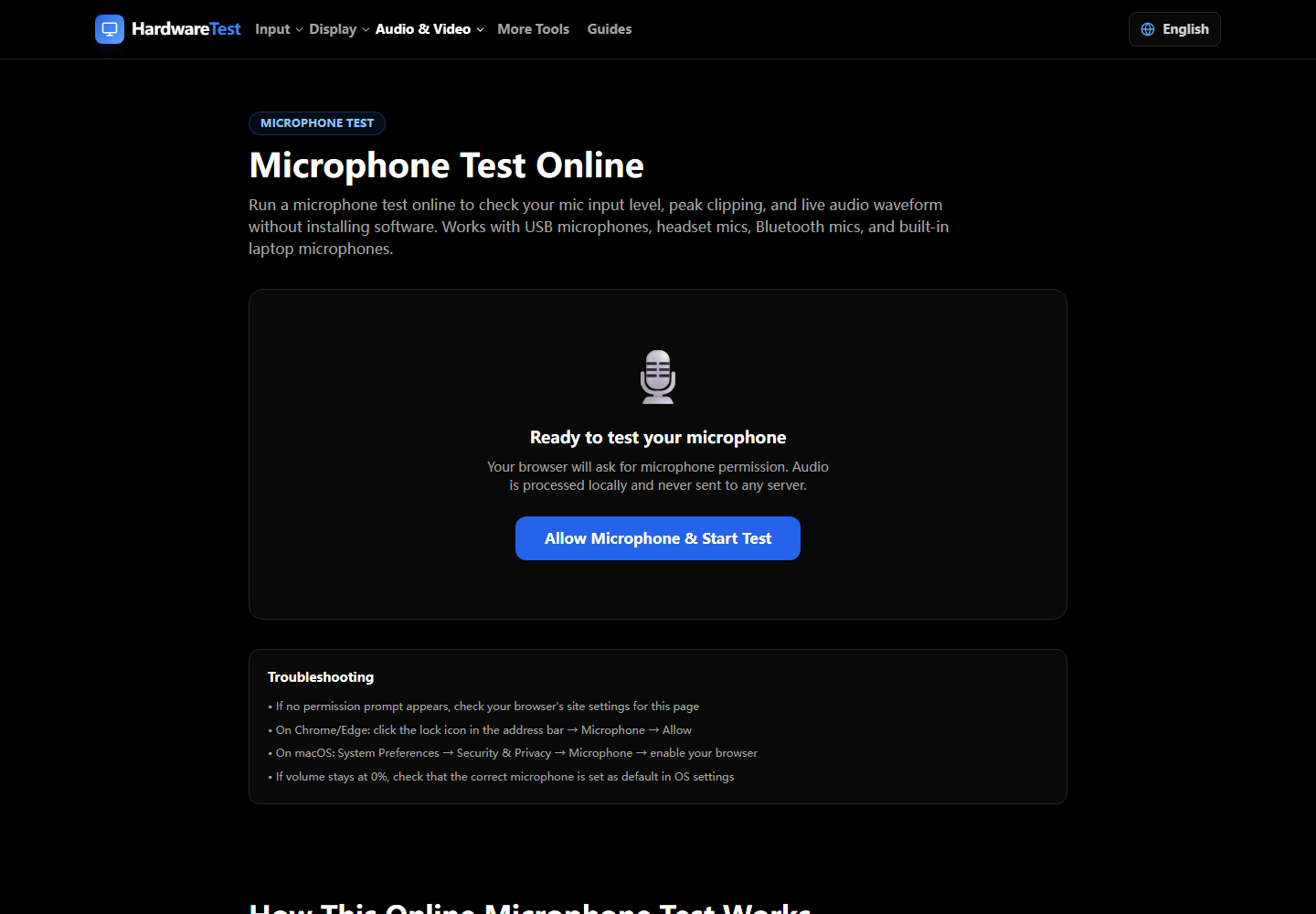
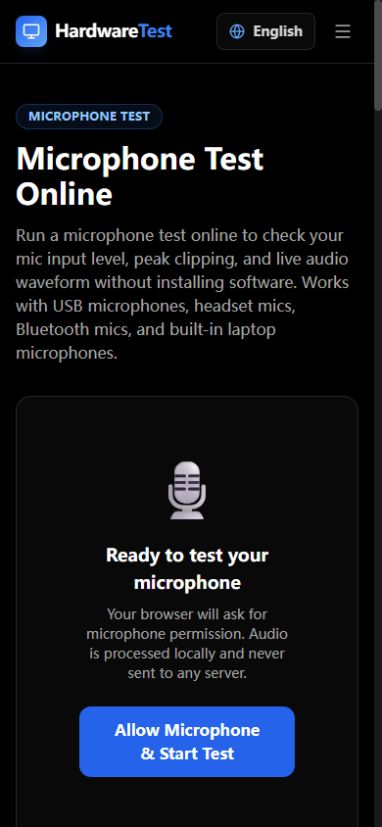
A browser microphone test needs three things at the same time: an HTTPS page, browser permission, and operating-system access to the selected input device. If the meter stays silent, verify those layers before replacing the microphone.
Start the Microphone Test and look for a permission request near the address bar.
Check permission and device selection
- Confirm that the page address begins with HTTPS.
- Open the site's permission panel and set Microphone to Allow.
- Select the intended input device if the tester offers a device list.
- Speak at a normal level and watch for movement.
- If there is no signal, compare the operating system's input meter.
- Close conferencing, recording, or voice-chat apps and retry.
The browser must ask before opening a microphone. Denial can be remembered for the site, so reloading alone may not show the prompt again. Reset the site permission, then reload.
Isolate the failing layer
| Observation | What it usually means | Next step |
|---|---|---|
| No permission prompt and access is blocked | A previous choice or browser policy is stored | Reset the site's microphone permission |
| OS meter works but browser meter does not | Browser permission, selected device, or extension | Choose the input again and compare browsers |
| Browser lists the wrong microphone | Default-device selection changed | Select the correct USB, headset, or built-in input |
| No app receives a signal | Device, cable, mute switch, driver, or OS privacy setting | Test another port or known-good input |
| Signal moves but playback is silent | Output routing is the separate problem | Check the Sound Test |
Browser limits and privacy
The page receives an audio stream only after permission. A basic meter can confirm that samples are arriving and show relative level changes, but it cannot certify frequency response, self-noise, latency, or recording quality. Those require a controlled recording method and known reference equipment.
HardwareTest.org does not need to upload raw microphone audio for this browser-level check. Confirm the active privacy indicator in your browser and stop the test when finished.
Practical follow-up
Test a headset and a built-in microphone separately. If only one input fails, the problem follows that device or its connection. If every input fails in one browser but works in another, reset permissions and extensions in the failing browser. For output-channel problems, follow the left and right audio guide or use the Speaker Test.
Primary sources
Technical claims are checked against the following vendor or platform documentation.
- MediaDevices: getUserMedia() method — MDN Web Docs
Ready to Test Your Monitor?
Use our professional dead pixel tester to check your screen for dead pixels, stuck pixels, and display uniformity issues.
Start Dead Pixel Test