Refresh Rate Test Shows the Wrong Hz? Common Causes and Fixes
If a refresh rate test reports 60Hz on a 144Hz or 240Hz monitor, check OS settings, cable limits, browser throttling, VRR, duplicated displays, and power mode.
The HardwareTest.org Editorial Team maintains the site's browser-based diagnostics and troubleshooting guides. We verify tool interfaces and reproduction steps in current browsers, document what a browser can and cannot measure, add original screenshots, and link technical claims to primary sources.
Reproducible review
How we checked this guide
We verified the refresh-rate test presentation in a visible desktop tab and a narrow viewport. The screenshots document the tool UI, not a claim about a particular monitor's physical refresh rate.
- Checked
- July 26, 2026
- Environment
- Desktop screenshots: Microsoft Edge 150.0.4078.83 · Windows desktop build 10.0.26200 · Desktop viewport: 1440 x 1000 · Responsive screenshots: current Chrome with a 390 x 844 viewport override
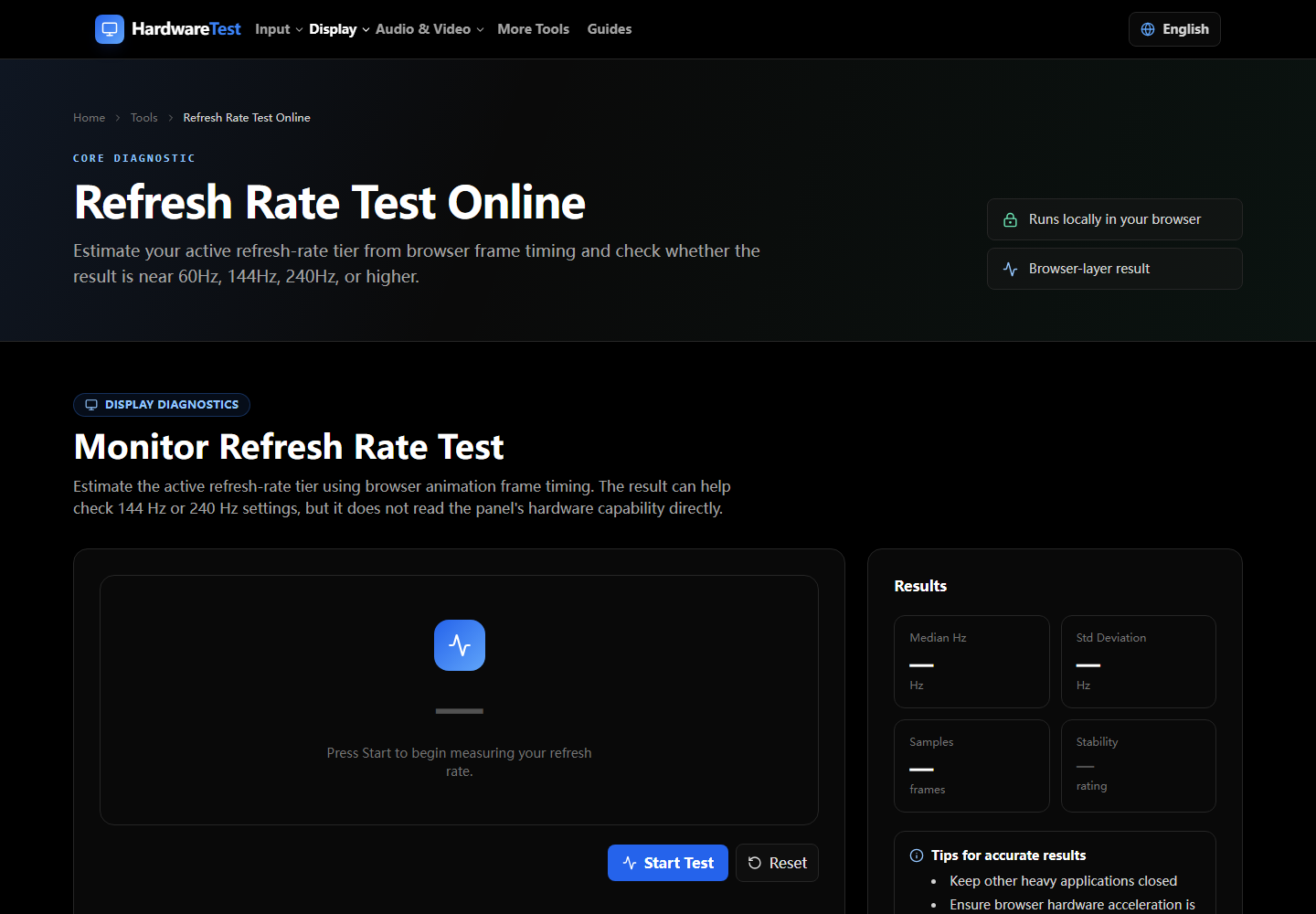
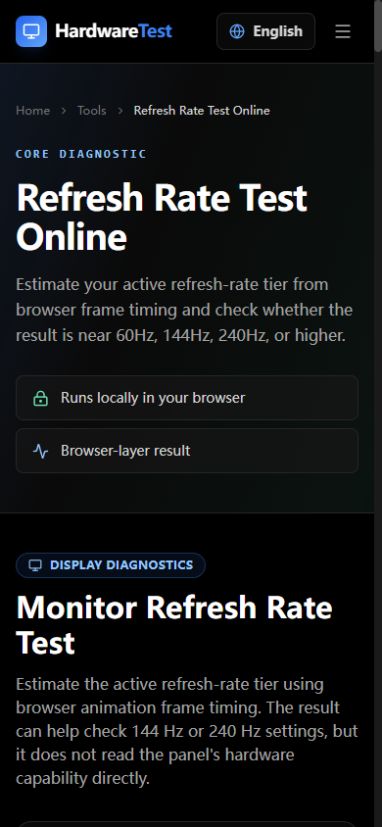
If a high-refresh monitor reports about 60 Hz in a browser, first confirm the selected refresh rate in the operating system. Then keep the test tab visible, remove mirrored-display constraints, and check the cable, port, dock, power mode, and browser acceleration.
Use the Refresh Rate Test after each change. A browser test observes animation timing; it does not read the monitor's internal electronics directly.
Check in this order
- In Windows, open Settings > System > Display > Advanced display and select the correct monitor.
- Confirm that the intended refresh rate and native resolution are selected.
- Use extended desktop mode instead of mirroring a slower display.
- Keep the browser tab in the foreground and close screen recorders or heavy tabs.
- Plug in a laptop and turn off aggressive battery saving for the comparison.
- Retest in another current browser.
On macOS, select the display in System Settings > Displays and inspect the available refresh-rate choices. If the expected option is absent in the OS, a web page cannot enable it.
Why browser readings move
The test uses animation callbacks that normally track repaint timing. Browsers pause or throttle those callbacks in hidden tabs and may coalesce work when the system is busy. Variable refresh rate and dynamic refresh-rate features can also make the measured interval move instead of staying on one exact value.
A small decimal difference around the selected mode is not evidence of a defect. Repeatedly measuring a much lower mode, such as a high-refresh display staying near 60 Hz, is a reason to inspect the configuration.
Cable, port, and dock limits
Do not rely on a connector label alone. The supported combination depends on resolution, refresh rate, color format, the source port, the monitor input, the cable, and any adapter or dock between them. Check the specifications for the exact monitor and computer. If possible, test a direct connection with a known-good cable before replacing the display.
The Screen Resolution Check helps confirm the browser's current viewport and display information, but it cannot identify the cable version.
Result guide
| Result | Most useful next step |
|---|---|
| High-refresh option is missing in OS settings | Check monitor input, cable, dock, GPU output, and native resolution |
| OS shows the correct rate but the hidden tab reads low | Keep the tab visible and rerun |
| One browser is consistently different | Check acceleration, extensions, and browser updates |
| Mirrored displays share a lower mode | Switch to extended desktop and select the target monitor |
| Rate changes on battery | Compare the device's dynamic refresh and power settings |
If you are checking a second-hand display, combine this with the used monitor checklist before purchase.
Primary sources
Technical claims are checked against the following vendor or platform documentation.
- Change the refresh rate on your monitor in Windows — Microsoft Support
- Window: requestAnimationFrame() method — MDN Web Docs
Ready to Test Your Monitor?
Use our professional dead pixel tester to check your screen for dead pixels, stuck pixels, and display uniformity issues.
Start Dead Pixel Test