Keyboard Tester Not Detecting Keys? What to Check First
If an online keyboard tester does not detect one key, several keys, or modifier combinations, start with focus, layout, browser shortcuts, rollover limits, and hardware checks.
The HardwareTest.org Editorial Team maintains the site's browser-based diagnostics and troubleshooting guides. We verify tool interfaces and reproduction steps in current browsers, document what a browser can and cannot measure, add original screenshots, and link technical claims to primary sources.
Reproducible review
How we checked this guide
We verified the current keyboard tester layout, focus instructions, and responsive presentation. Reserved system shortcuts and device faults must be confirmed on the reader's own keyboard.
- Checked
- July 26, 2026
- Environment
- Desktop screenshots: Microsoft Edge 150.0.4078.83 · Windows desktop build 10.0.26200 · Desktop viewport: 1440 x 1000 · Responsive screenshots: current Chrome with a 390 x 844 viewport override
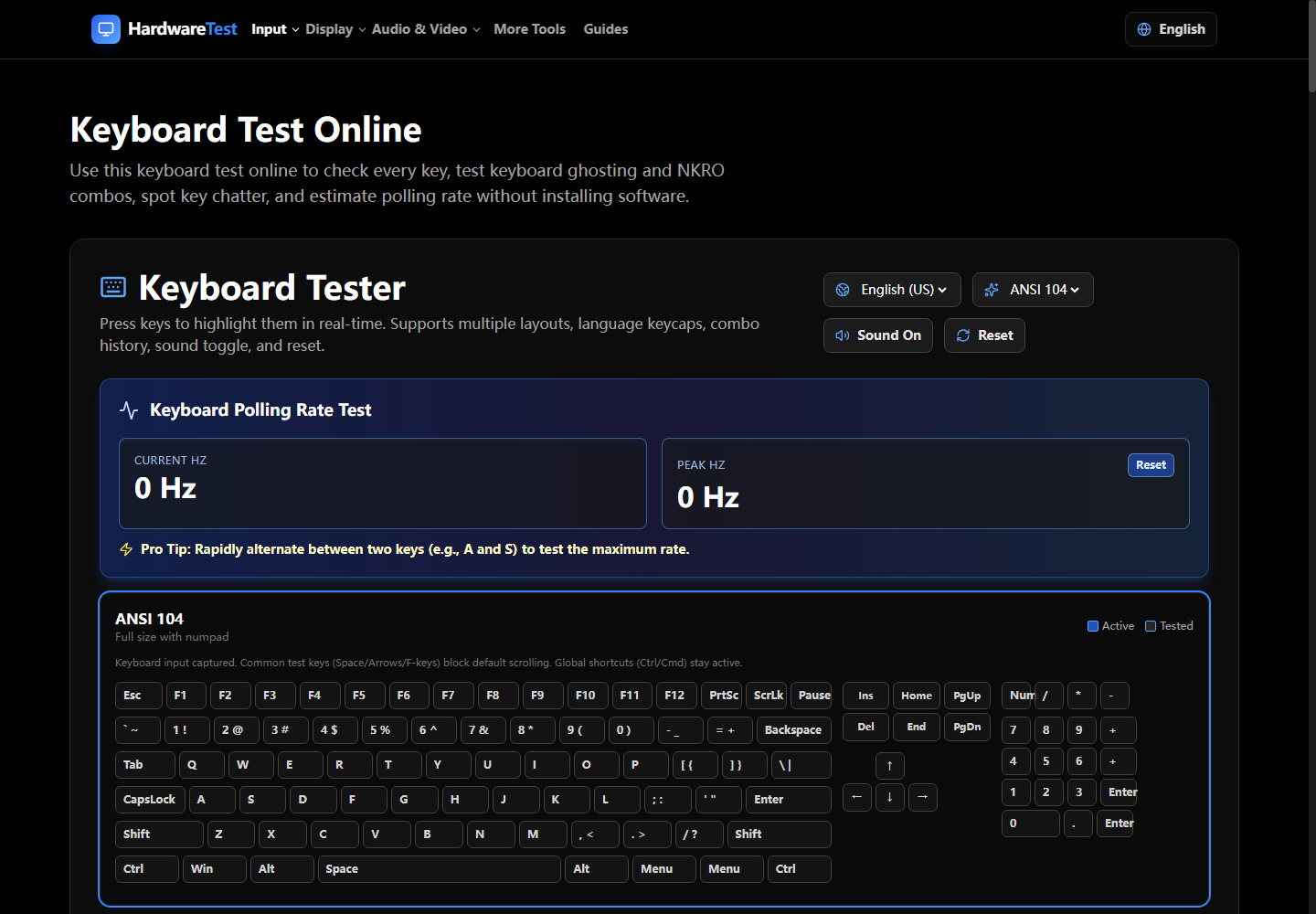
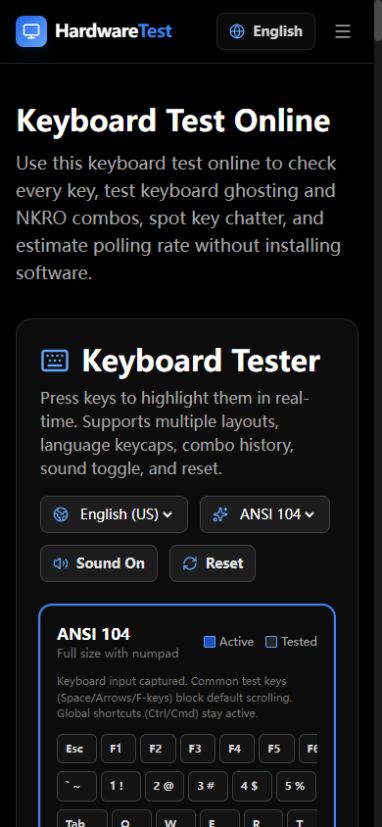
If the tester misses a key, first click inside the test area and try a normal letter. Then compare the same key in a text editor. A key that works outside the browser is usually being intercepted, remapped, or reported under a different keyboard layout. A key that fails everywhere is more likely to have a hardware problem.
Open the Keyboard Test before working through the checks below. Change one condition at a time so the result tells you something useful.
Reproduce the problem cleanly
- Close macro tools and keyboard configuration software.
- Open the tester in a normal browser window and click once inside it.
- Press A, S, Enter, Shift, and the problem key one at a time.
- Hold a common combination such as W + Shift + Space.
- Repeat the problem key in Notepad, TextEdit, or another plain text field.
The browser reports keyboard events after the operating system has applied the active layout and reserved its own shortcuts. That is why a printed keycap and the value shown by a web page can differ.
Interpret what you see
| Result | Likely explanation | Next check |
|---|---|---|
| Nothing works until the page is clicked | The page did not have focus | Click the tester before pressing keys |
| Letters work but F-keys or media keys do not | Browser, OS, or firmware shortcut | Compare with the OS keyboard viewer |
| One key shows a different character | Active layout or remapping | Check input language and vendor profiles |
| Individual keys work but a combination fails | Rollover or matrix limitation | Use the Key Rollover Test |
| The same physical key fails in every app | Switch, membrane, socket, cable, or controller fault | Test another port or computer |
Browser and operating-system limits
Some shortcuts never reach a page. F5 can reload the tab, Ctrl+L can select the address bar, and Alt+Tab or Command+Space is handled by the operating system. Media keys may be exposed through a different system path instead of a normal keyboard event. A browser tester cannot override those choices.
Keyboard layout matters too. The browser's reported key value reflects modifiers and the active locale. If symbols look wrong, compare the physical layout with the input source selected in Windows or macOS.
Separate rollover from a dead key
Test the problem key alone, then while holding two or three nearby keys. If it fails only in a combination, the switch is working and the limitation is in the keyboard matrix, firmware mode, or rollover behavior. If you are investigating a specific spacebar problem, use the spacebar troubleshooting guide.
When hardware is the stronger suspect
Hardware is more likely when the same key fails in the browser, a text editor, the login screen, and another computer. For a wired keyboard, try a direct USB port. For a wireless model, charge it and move the receiver away from hubs or metal obstructions. Avoid opening a device that is still covered by a return or warranty policy.
Primary sources
Technical claims are checked against the following vendor or platform documentation.
- KeyboardEvent: key property — MDN Web Docs
Ready to Test Your Keyboard?
Use our free keyboard tester to catch double-typing, ghosting, and chattering issues before they ruin your work or game.
Start Keyboard Test