How to Detect and Fix Controller Stick Drift: Complete Guide
Learn how to test for analog stick drift on Xbox, PlayStation, and Nintendo controllers. Includes detection methods, calibration steps, and repair options.
The HardwareTest.org Editorial Team maintains the site's browser-based diagnostics and troubleshooting guides. We verify tool interfaces and reproduction steps in current browsers, document what a browser can and cannot measure, add original screenshots, and link technical claims to primary sources.
Reproducible review
How we checked this guide
We verified the controller tester's axis and connection guidance without claiming a connected controller or a universal drift threshold. Readers must reproduce the released-axis behavior on their device.
- Checked
- July 26, 2026
- Environment
- Desktop screenshots: Microsoft Edge 150.0.4078.83 · Windows desktop build 10.0.26200 · Desktop viewport: 1440 x 1000 · Responsive screenshots: current Chrome with a 390 x 844 viewport override
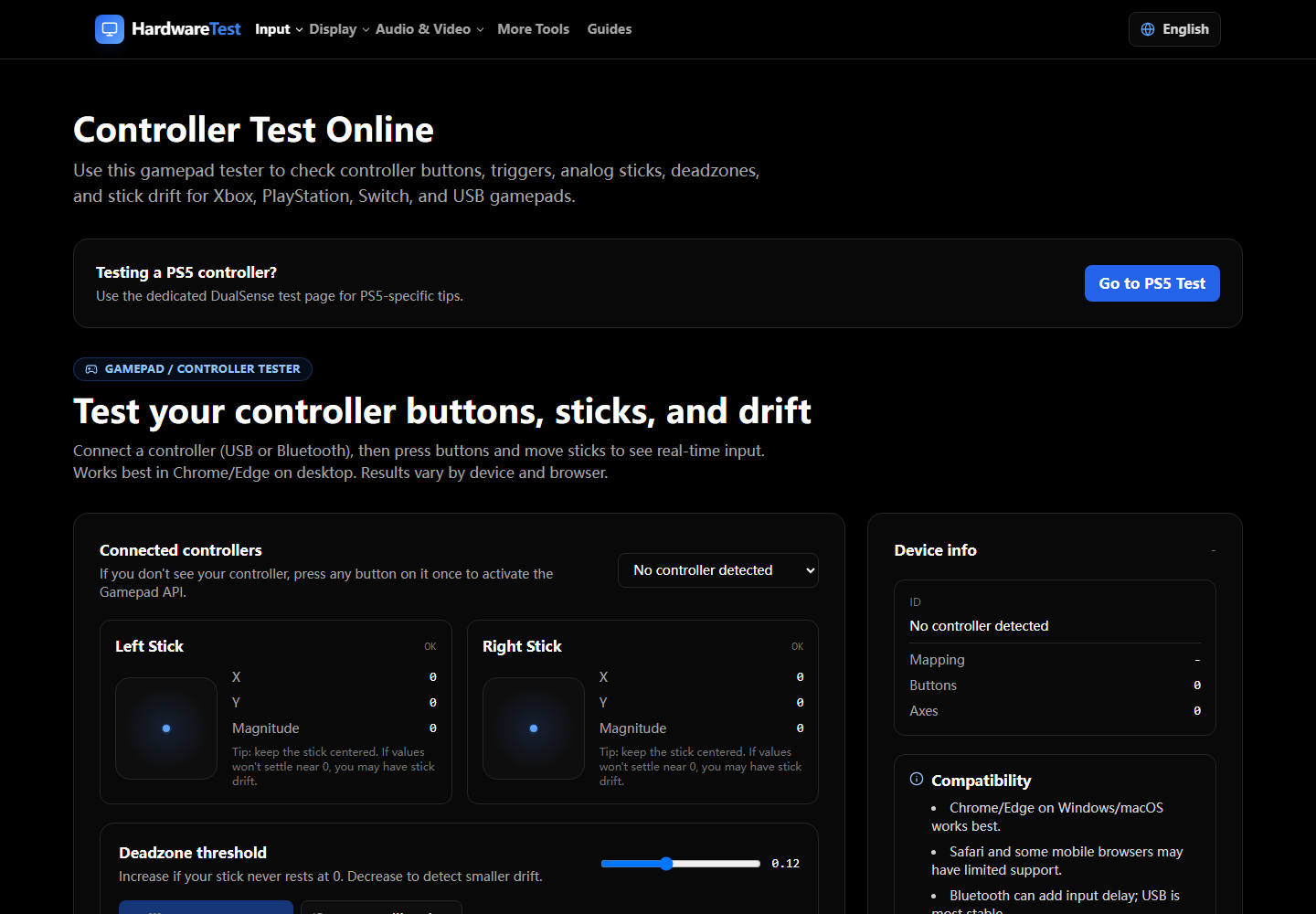
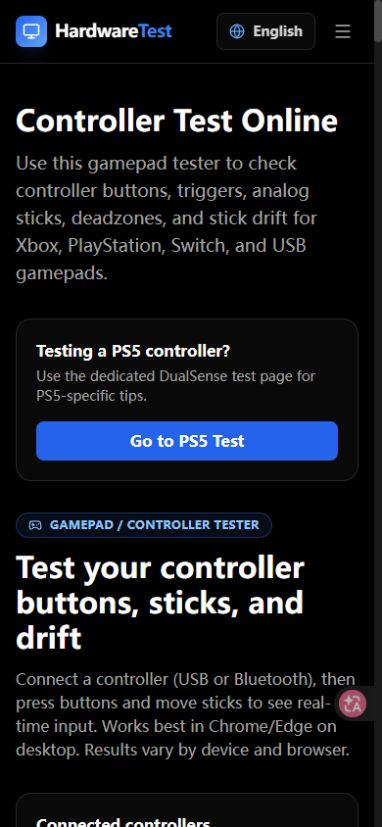
Stick drift is unintended axis input while the stick is released. Confirm it by leaving the controller untouched, observing both axes over several seconds, repeating after normal stick movement, and comparing the result in a game or the platform's calibration screen.
Use the Controller Test to see the browser-reported axes.
Confirm drift without inventing a threshold
- Connect the controller and press a button so the browser exposes it.
- Place it on a stable surface and release both sticks.
- Watch whether the indicator repeatedly settles away from center.
- Move each stick through its full range, release it, and repeat.
- Compare the behavior with the game's own input display or console calibration screen.
A tiny changing value is not automatically a fault. Browser and controller values can contain noise, and games apply different deadzones. The useful question is whether the released input is repeatable and large enough to move a menu, camera, or character in the affected software.
Separate drift from another problem
| Observation | More likely explanation | Follow-up |
|---|---|---|
| Axis moves only in one browser | Browser, mapping, or remapping layer | Compare another browser and close remappers |
| Axis is off-center in browser, console calibration, and games | Calibration, contamination, wear, or damage | Check firmware, calibration, and warranty |
| Increasing the game's deadzone hides the symptom | Small released input is present | Use the smallest acceptable deadzone as a workaround |
| Stick does not reach the edge | Calibration, obstruction, or worn mechanism | Compare the platform calibration range |
| Controller is not detected at all | Connection issue, not drift | Follow the detection guide |
Lowest-risk fixes first
Update controller firmware using the platform or manufacturer's official software. Then use the official calibration flow if one is provided. Nintendo, for example, documents a control-stick calibration process in system settings.
If the device is in warranty, stop before opening it or applying chemicals. External cleaning should follow the manufacturer's instructions. Do not spray general lubricant into the stick mechanism, and do not treat an unverified online success percentage as evidence that a repair is safe.
Repair versus workaround
A game deadzone is a workaround, not a physical repair. It can make small unwanted input less visible while reducing fine control near the center. Internal module replacement requires model-specific parts, disassembly, soldering on many controllers, and recalibration. Use authorized service or a qualified repairer unless you understand those risks.
For PlayStation, Xbox, or Switch layouts, compare the dedicated PS5 Controller Test, Xbox Controller Test, and Switch Controller Test. Browser values remain a diagnostic signal, not a warranty decision.
Primary sources
Technical claims are checked against the following vendor or platform documentation.
- Gamepad interface — MDN Web Docs
- Control Sticks Are Not Responding Correctly on Nintendo Switch Pro Controller — Nintendo Support
Ready to Test Your PS5 Controller?
Use our PS5 DualSense tester to verify buttons, triggers, and sticks, and detect stick drift with an adjustable deadzone.
Start PS5 Controller Test