Gamepad Tester Not Detecting Your Controller? Fixes for Browser Tests
If a browser gamepad tester does not detect an Xbox, PlayStation, Switch, or generic controller, check connection mode, browser support, focus, permissions, and Steam input.
The HardwareTest.org Editorial Team maintains the site's browser-based diagnostics and troubleshooting guides. We verify tool interfaces and reproduction steps in current browsers, document what a browser can and cannot measure, add original screenshots, and link technical claims to primary sources.
Reproducible review
How we checked this guide
We verified the current controller tester's connection instructions and responsive presentation without claiming that a particular controller model was connected during the screenshot run.
- Checked
- July 26, 2026
- Environment
- Desktop screenshots: Microsoft Edge 150.0.4078.83 · Windows desktop build 10.0.26200 · Desktop viewport: 1440 x 1000 · Responsive screenshots: current Chrome with a 390 x 844 viewport override
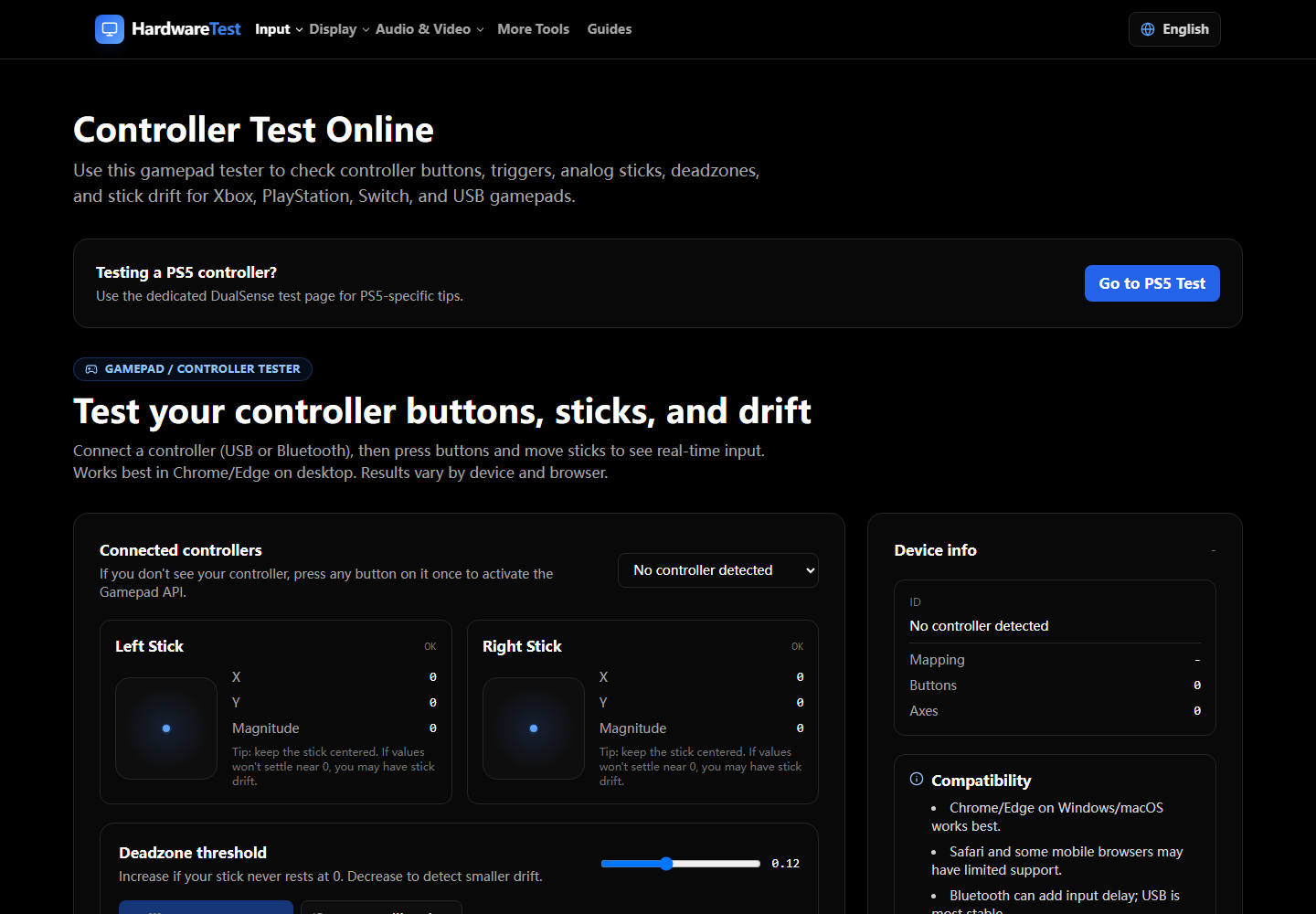
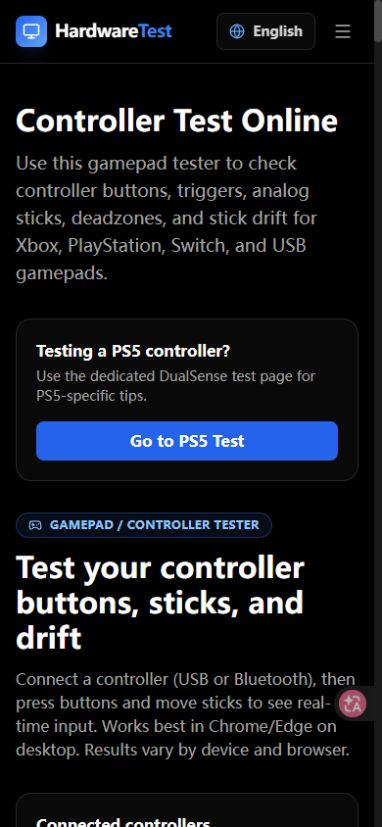
If a browser tester does not show your controller, press a normal face button after opening the page, then confirm that the operating system can see the device. USB is the clearest first comparison because it removes Bluetooth pairing and battery state from the test.
Open the Controller Test and follow the sequence below.
Detection checklist
- Connect the controller before or after opening the page.
- Click the page and press A, Cross, Start, or another face button.
- If nothing appears, reload once with the controller connected.
- Try a direct USB cable and a second current browser.
- Close Steam Input, DS4Windows, reWASD, JoyToKey, and similar remapping tools for the comparison.
- Check the operating system's controller panel or Bluetooth device list.
Browsers may wait for a button press before exposing a controller. This is normal and helps prevent passive device fingerprinting. If the OS does not see the controller, the browser cannot see it either.
Interpret common outcomes
| Outcome | Likely layer | Next step |
|---|---|---|
| Device appears after a button press | Browser activation behavior | Continue testing buttons and axes |
| USB works but Bluetooth does not | Pairing, battery, wireless profile, or platform support | Remove the old pairing and reconnect |
| OS sees the controller but one browser does not | Browser support, permission, or extension | Update and compare another browser |
| A virtual controller appears instead of the physical one | Remapping software | Close or reconfigure the remapper |
| Controller appears but labels look different | Browser/platform mapping | Test function and axis movement, not printed labels alone |
Detection is not calibration
The Gamepad API exposes buttons, axes, an identifier, and a mapping string when the platform provides them. Support still varies by controller, browser, transport, and operating system. A detected device can therefore have a different button order without being broken.
Once the controller appears, press every button, move both sticks through their full range, and release them. If an untouched stick does not settle near the center, continue with the controller drift guide.
For device-specific layouts, compare the PS5 Controller Test, Xbox Controller Test, or Switch Controller Test. These pages still depend on the same browser and platform input path.
When to stop troubleshooting the browser
If the controller fails in the OS controller panel, on the console, and over both USB and Bluetooth, investigate the cable, battery, pairing state, firmware, or hardware. If it works outside the browser, keep the physical device unchanged and compare browsers and remapping software instead.
Primary sources
Technical claims are checked against the following vendor or platform documentation.
- Gamepad interface — MDN Web Docs
Ready to Test Your PS5 Controller?
Use our PS5 DualSense tester to verify buttons, triggers, and sticks, and detect stick drift with an adjustable deadzone.
Start PS5 Controller Test