GPU Stress Test in a Browser: What It Can and Cannot Tell You
A browser GPU stress test can reveal crashes, throttling, noisy fans, and WebGL issues, but it cannot replace tools that read sensors, VRAM errors, or driver-level stability.
The HardwareTest.org Editorial Team maintains the site's browser-based diagnostics and troubleshooting guides. We verify tool interfaces and reproduction steps in current browsers, document what a browser can and cannot measure, add original screenshots, and link technical claims to primary sources.
Reproducible review
How we checked this guide
We verified the current WebGL test entry screen, explanatory limits, and responsive layout. We did not use this browser run to certify GPU hardware or collect sensor-level data.
- Checked
- July 26, 2026
- Environment
- Desktop screenshots: Microsoft Edge 150.0.4078.83 · Windows desktop build 10.0.26200 · Desktop viewport: 1440 x 1000 · Responsive screenshots: current Chrome with a 390 x 844 viewport override
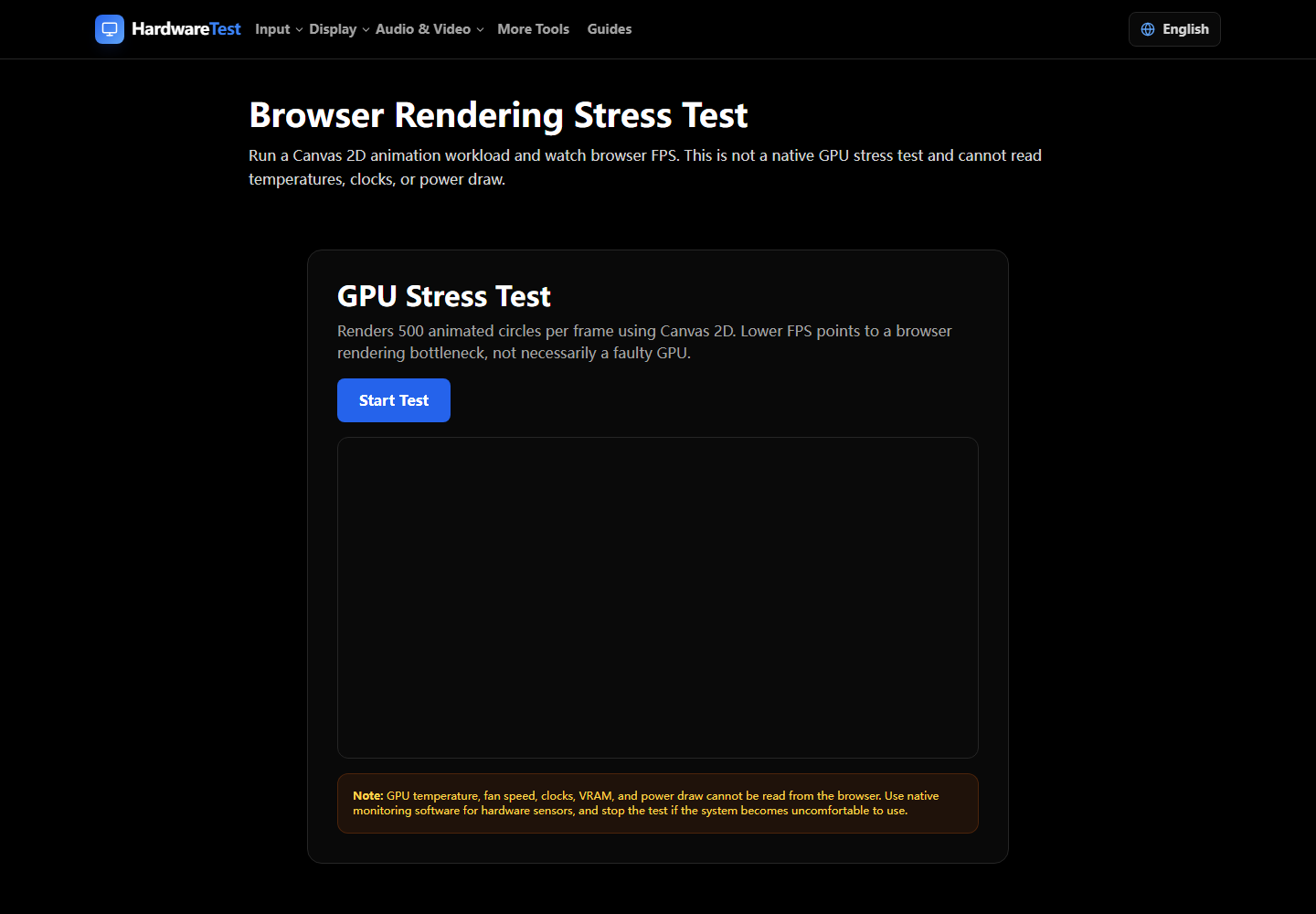
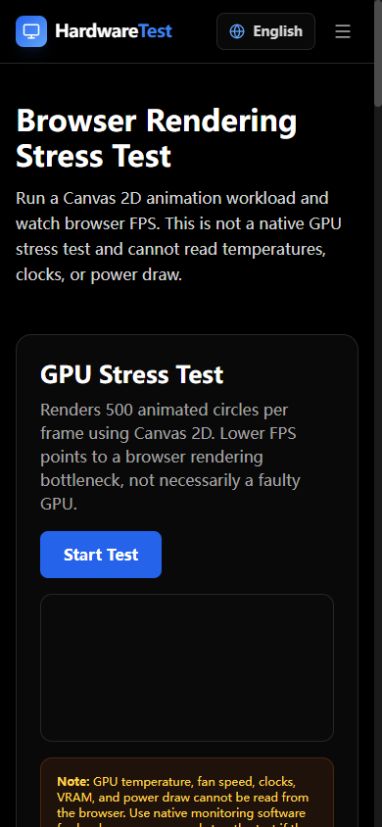
A browser GPU stress test can reveal whether the WebGL rendering path crashes, stalls, produces visible artifacts, or slows down over time. It cannot certify a graphics card, read every temperature or power sensor, or check all VRAM locations. Treat the result as a quick screening step.
Start with the GPU Stress Test and keep the tab visible while it runs.
A reproducible browser check
- Plug in a laptop and close unrelated graphics-heavy tabs.
- Record the browser name, power mode, and whether hardware acceleration is enabled.
- Run the same scene for a short interval and watch frame rate, responsiveness, and the image itself.
- Repeat once in a second browser if the first result looks abnormal.
- Stop immediately if the system becomes unstable or the device temperature or fan behavior concerns you.
The comparison is more useful than a single score. If one browser fails and another does not, investigate browser acceleration, extensions, and the graphics backend before assuming the hardware is faulty.
What the result can show
- A WebGL context can be created and rendered.
- The browser or graphics driver resets under this workload.
- Frame delivery falls sharply after the device warms up.
- Visible corruption appears in this scene.
- A browser setting or power mode changes the outcome.
These are observations, not a diagnosis. A frame-rate drop can come from browser scheduling, another process, power saving, or thermal limits.
What it cannot show
A normal browser result does not prove stability in DirectX, Vulkan, CUDA, Metal, a particular game, or a long native workload. The page does not have universal access to VRAM testing, fan control, exact clocks, board power, or every temperature sensor. It also cannot separate every driver problem from a hardware fault.
Use a vendor or native diagnostic when crashes also occur outside the browser, when an overclock or undervolt is involved, or when you need sensor logs. The Browser Benchmark can provide another browser-level comparison, while the FPS Test is useful for checking animation delivery rather than GPU stability.
Reading common outcomes
| Observation | What it suggests | Follow-up |
|---|---|---|
| Test does not start | WebGL, browser policy, or acceleration issue | Check acceleration and another browser |
| One browser crashes | Browser or graphics-backend difference | Update browser and driver |
| All graphics apps show artifacts | Driver or hardware issue is more plausible | Stop stress testing and use native diagnostics |
| Frame rate falls gradually | Power or thermal behavior may be involved | Compare plugged-in and normal power modes |
| Browser test is clean but a game crashes | Workloads are not equivalent | Test the affected native API and application |
For display timing rather than graphics stability, use the Refresh Rate Test and the related wrong-Hz troubleshooting guide.
Primary sources
Technical claims are checked against the following vendor or platform documentation.
- WebGL best practices — MDN Web Docs
Ready to Test Your Monitor?
Use our professional dead pixel tester to check your screen for dead pixels, stuck pixels, and display uniformity issues.
Start Dead Pixel Test