Monitor Test Software: What to Use and What It Can Measure
Choose monitor test software by the problem: browser patterns for pixels and uniformity, system settings for display modes, and instruments for color measurement.
The HardwareTest.org Editorial Team maintains the site's browser-based diagnostics and troubleshooting guides. We verify tool interfaces and reproduction steps in current browsers, document what a browser can and cannot measure, add original screenshots, and link technical claims to primary sources.
Reproducible review
How we checked this guide
We reviewed the current solid-color, uniformity, and refresh-rate tools in a desktop browser. The screenshots document the available workflows. They do not claim instrument-level color, luminance, response-time, or input-lag measurements.
- Checked
- July 26, 2026
- Environment
- Desktop screenshots: Microsoft Edge 150.0.4078.83 · Windows desktop build 10.0.26200 · Desktop viewport: 1440 x 1000 · Responsive screenshots: current Chrome with a 390 x 844 viewport override
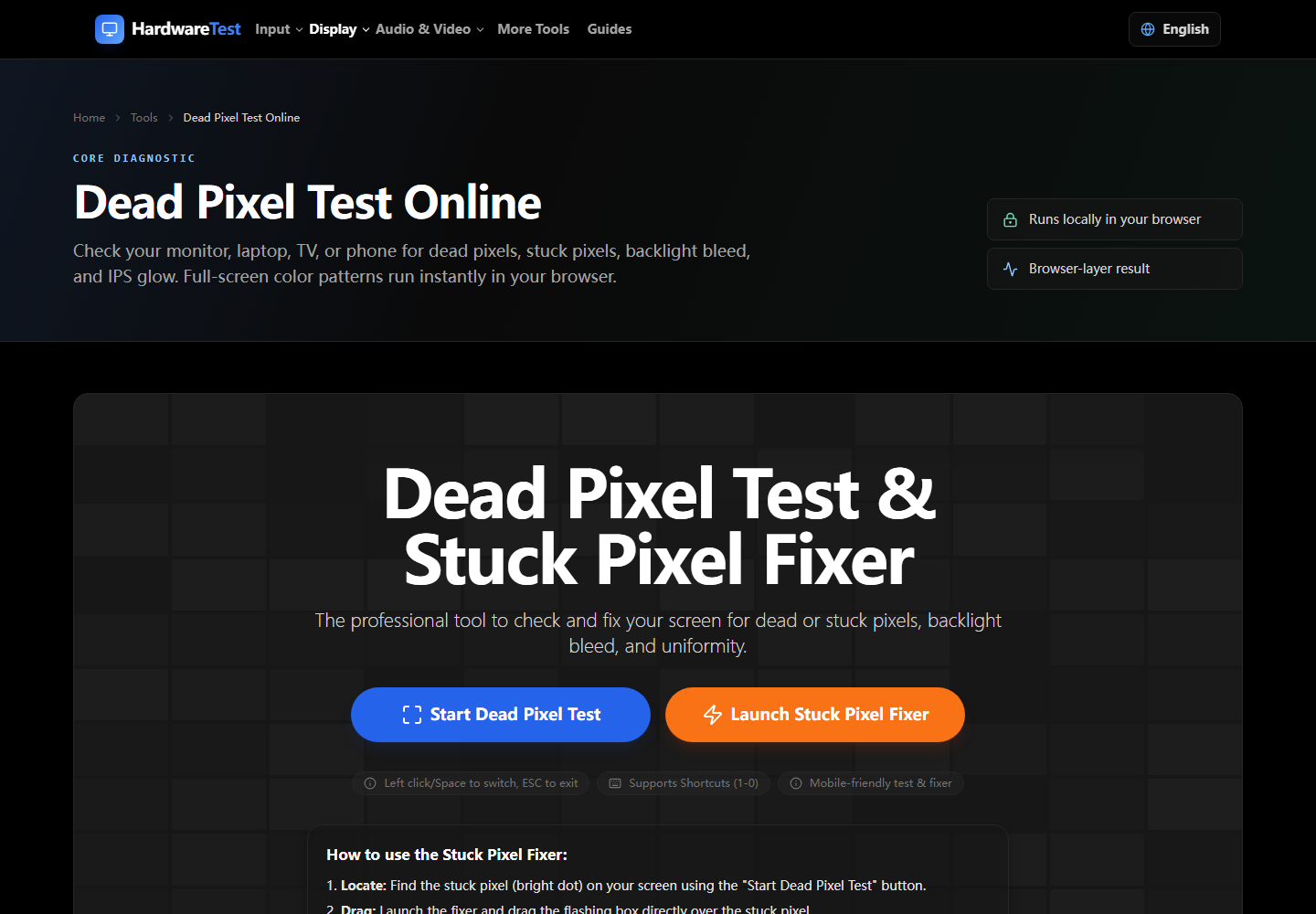
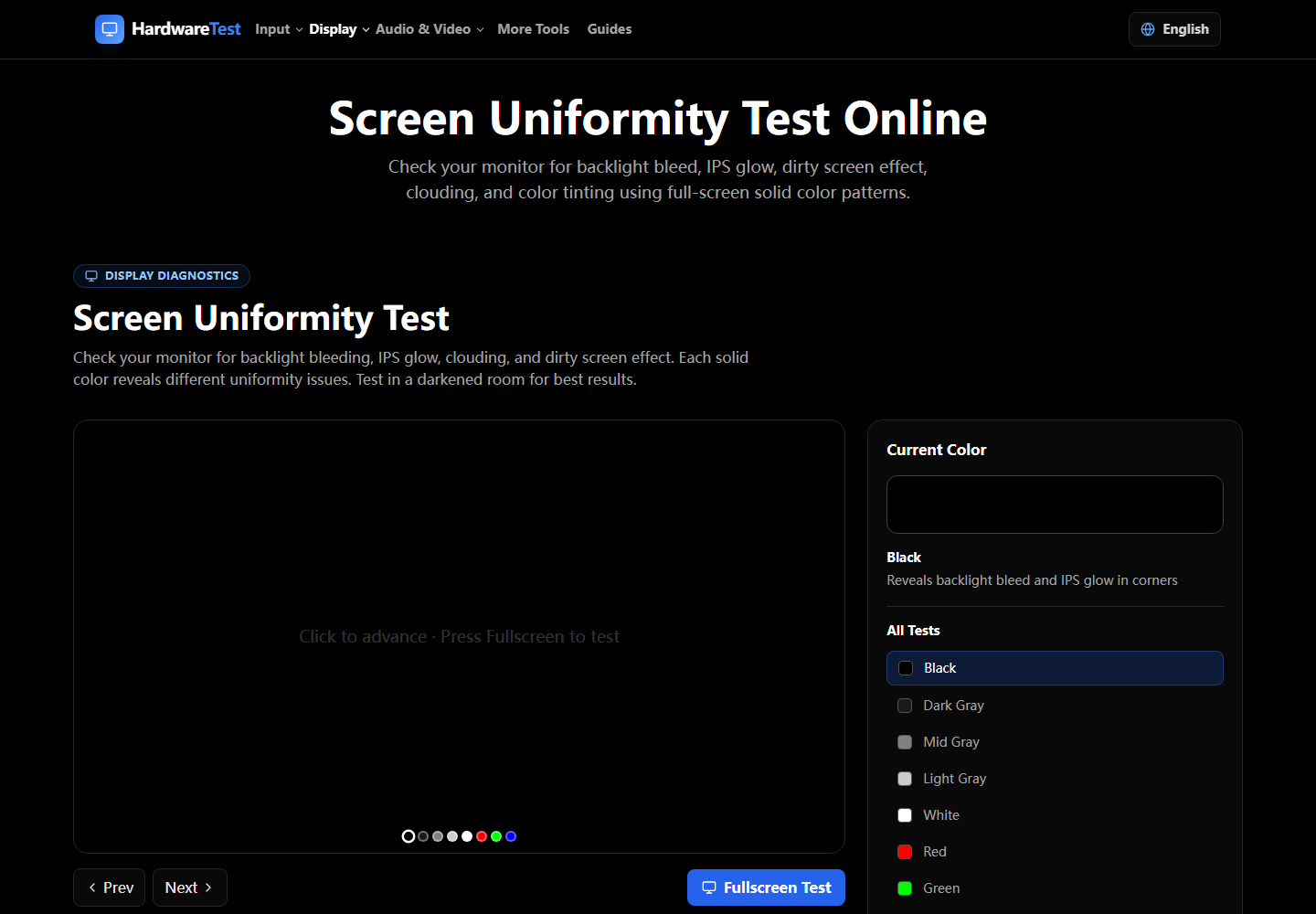
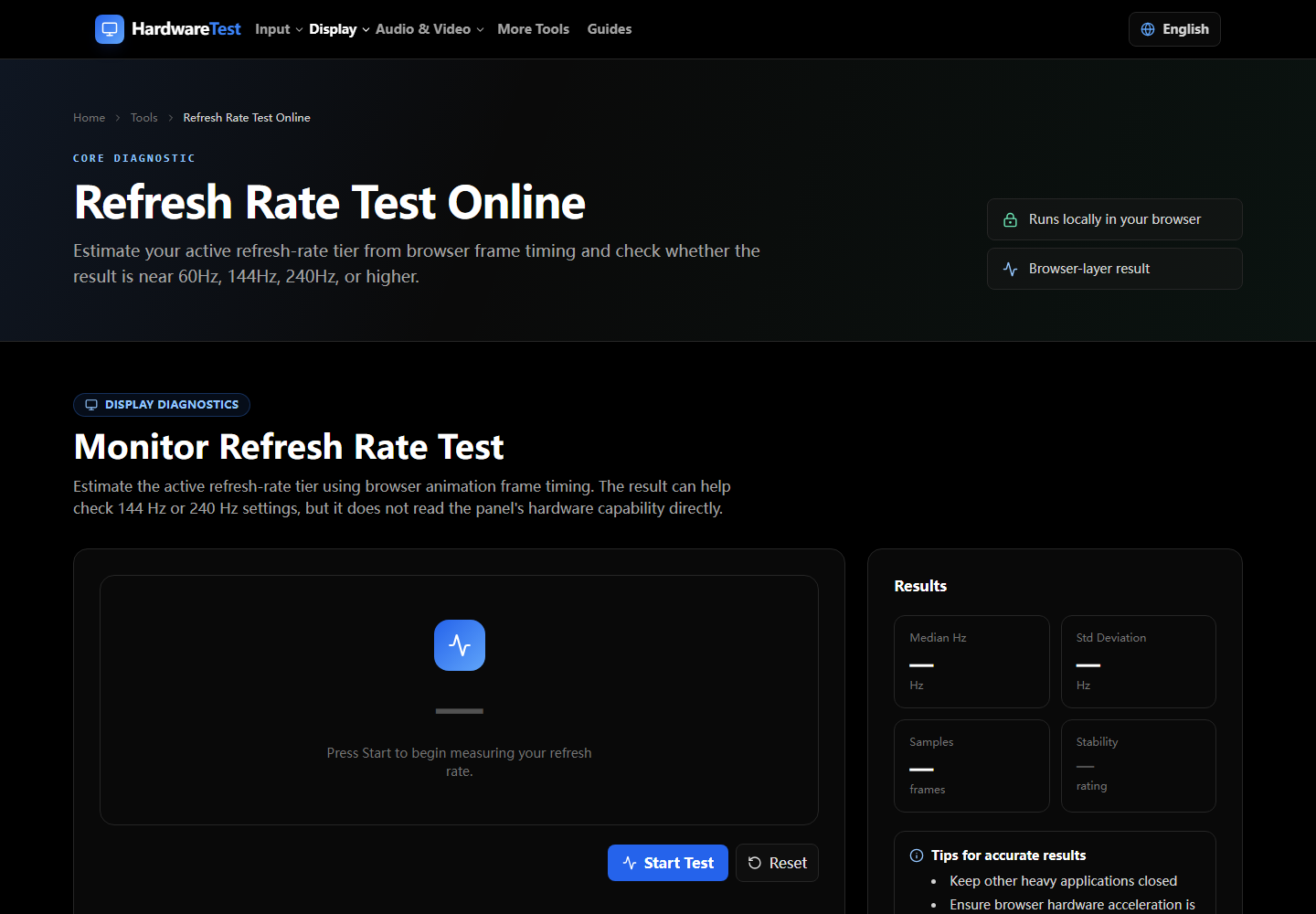
There is no single monitor test program that measures every display problem. Browser tools are useful for showing controlled colors, gradients, motion patterns, and frame timing. Operating-system settings confirm the selected display mode. Accurate color, luminance, response-time, and input-lag measurements need dedicated software, an instrument, or both.
Choose the test from the symptom. A long list of programs is less useful than knowing what each method can actually observe.
Match the problem to the test
| What you need to check | Start with | What the result can tell you |
|---|---|---|
| Fixed dark or bright point | Dead Pixel Test | Whether a point stays abnormal across solid colors |
| Uneven tint, dark patches, or edge brightness | Screen Uniformity Test | Whether the pattern looks uneven from the normal viewing position |
| Selected refresh mode | Operating-system display settings, then the Refresh Rate Test | Whether the OS exposes the intended mode and how browser repaint timing behaves |
| Accurate color or luminance | Colorimeter or spectrophotometer with its supported software | Instrument readings that a browser cannot produce on its own |
| Response time or input lag in milliseconds | A documented external measurement setup | Timing that is not available from a visual browser pattern alone |
The distinction matters. A solid gray screen may reveal a patch, but it cannot assign a reliable luminance percentage without an instrument. A moving pattern may make ghosting visible, but watching it does not produce a defensible response-time number.
What browser monitor tests do well
A browser can fill the screen with a known pattern and let you change that pattern quickly. This is enough for several practical checks:
- Scan white, black, red, green, and blue for fixed pixel defects.
- Compare gray and white screens for obvious tint or brightness variation.
- Inspect gradients for visible banding under the current display settings.
- Show motion patterns so you can compare overdrive modes by eye.
- Estimate repaint timing while the tab is visible.
These checks work best as comparisons. Keep the same brightness, viewing position, browser, room lighting, and display mode while changing one setting at a time. Record what changed instead of relying on memory.
When installed software is the better choice
Use the operating system or the display vendor's utility when the task involves a setting that a web page cannot control. Examples include selecting resolution and refresh rate, changing HDR mode, loading a color profile, updating monitor firmware, or configuring a USB-connected display feature.
Installed software does not automatically make a measurement accurate. A calibration program still needs a compatible sensor to measure the light coming from the screen. Without that sensor, software can show adjustment targets, but it cannot know whether the displayed white point or brightness is correct.
When you need measurement hardware
A colorimeter or spectrophotometer is appropriate when the result must be numerical and repeatable. Typical jobs include creating a display profile, checking white point, measuring brightness, or comparing color error before and after calibration.
Response time and input lag need a different setup. A browser page can display a change, but it cannot observe the whole path from signal generation to light leaving the panel. Treat websites that promise exact hardware timing from an ordinary visual test with caution unless they publish a reproducible measurement method.
A ten-minute monitor check
- Set the monitor to its native resolution and intended refresh rate in the operating system.
- Turn off temporary color filters such as night mode for the comparison.
- Clean the screen while it is off, then inspect solid colors in full screen.
- View gray and white patterns from the position where you normally sit.
- Run the refresh-rate page in a visible tab and compare it with the selected OS mode.
- Change one monitor setting at a time and repeat the affected pattern.
- Photograph or write down a defect before changing cables, ports, or source devices.
If a mark stays in the same physical location across inputs and patterns, continue with the screen defect diagnosis guide. If it appears in a software screenshot viewed on another display, investigate the source application or graphics path instead.
How to read the outcome
| Observation | What to do next |
|---|---|
| Fixed point appears on every input | Document it and check the seller or manufacturer policy |
| Uneven area changes with viewing angle | Repeat from the normal seating position before calling it a defect |
| Expected refresh option is missing in the OS | Check the exact port, cable, dock, resolution, and monitor input specifications |
| Browser timing is low only in a background tab | Keep the test visible and repeat it |
| Visual color looks wrong but accuracy matters | Use a supported measuring instrument instead of adjusting by memory |
Monitor test software is useful when its scope is clear. Use browser patterns for visual screening, system tools for configuration, and instruments when the answer needs a measured number.
Primary sources
Technical claims are checked against the following vendor or platform documentation.
- Change the refresh rate on your monitor in Windows — Microsoft Support
- Window: requestAnimationFrame() method — MDN Web Docs
- Dell Display Pixel Guidelines — Dell Support
Ready to Test Your Monitor?
Use our professional dead pixel tester to check your screen for dead pixels, stuck pixels, and display uniformity issues.
Start Dead Pixel Test