Mouse Polling Rate in the Browser: What This Test Measures (and What It Doesn’t)
Web-based mouse polling tests measure browser-delivered pointer event frequency, not raw USB polling. Learn why ~125Hz appears, why high polling rates are indistinguishable on the web, and how to interpret results.
The HardwareTest.org Editorial Team maintains the site's browser-based diagnostics and troubleshooting guides. We verify tool interfaces and reproduction steps in current browsers, document what a browser can and cannot measure, add original screenshots, and link technical claims to primary sources.
Reproducible review
How we checked this guide
We verified the current event-rate interface, result labels, instructions, and responsive layout. The screenshots do not represent a raw USB capture or a comparison of mouse models.
- Checked
- July 26, 2026
- Environment
- Desktop screenshots: Microsoft Edge 150.0.4078.83 · Windows desktop build 10.0.26200 · Desktop viewport: 1440 x 1000 · Responsive screenshots: current Chrome with a 390 x 844 viewport override
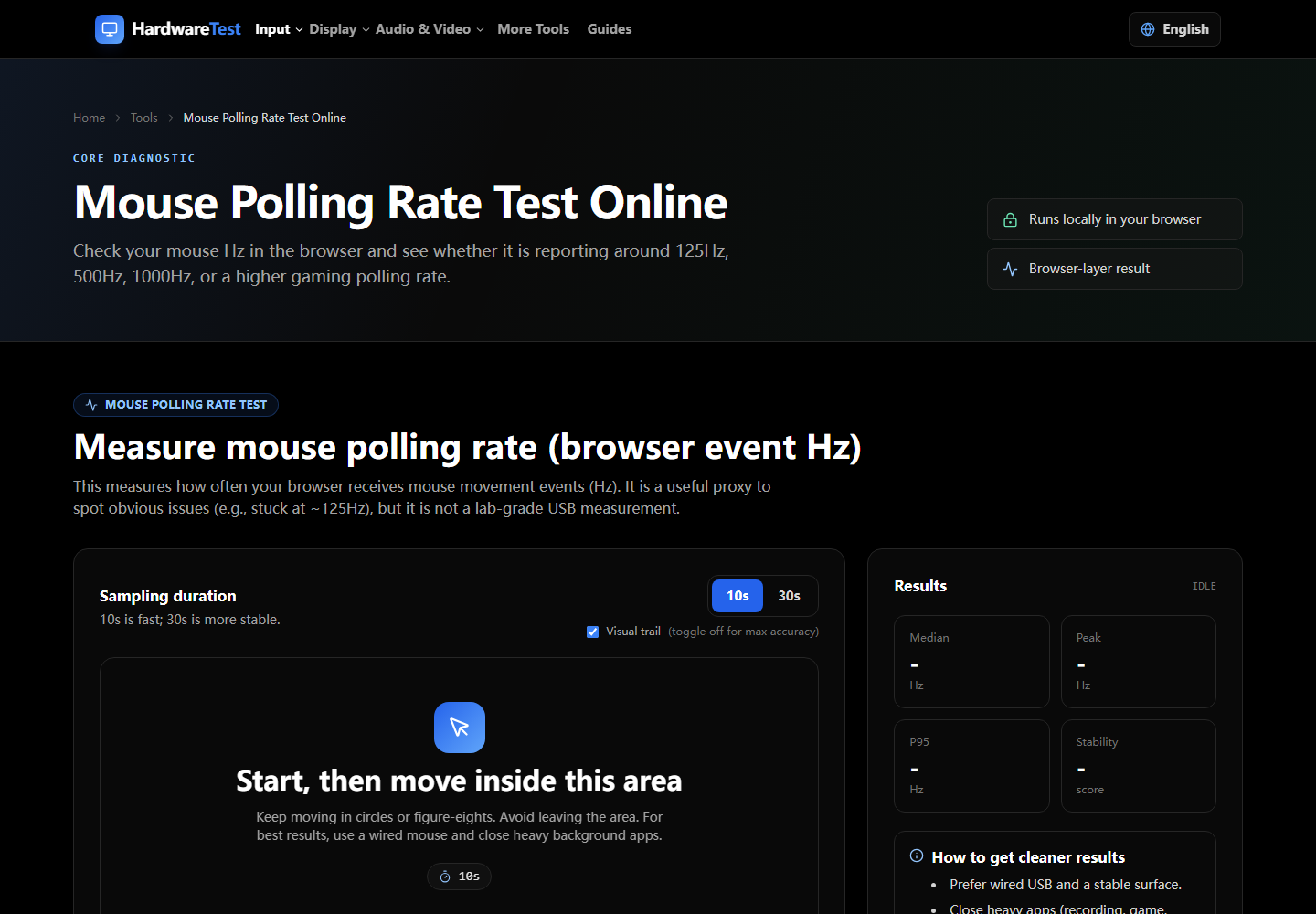
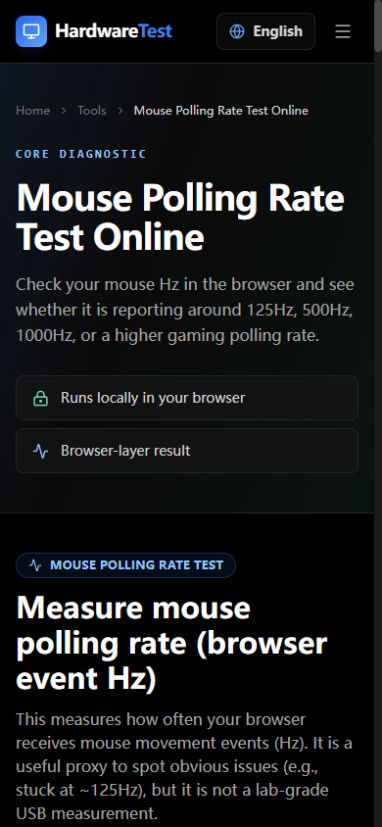
A browser mouse polling test estimates the rate at which pointer events reach the page. It does not read raw USB packets, so the result can vary with movement, browser event handling, system load, wireless mode, and the test window's visibility.
Use the Mouse Polling Rate Test as a comparison tool. Look at the distribution and repeatability instead of treating one peak value as a hardware certificate.
Run a cleaner comparison
- Connect the mouse directly or place its wireless receiver close to it.
- Use the same DPI, browser, port, and power mode for every run.
- Keep the tab visible and move the pointer continuously across the test area.
- Run several samples with the same motion pattern.
- Change only one condition, such as browser, USB port, or wireless mode, before repeating.
Slow movement may not generate enough changing positions to exercise a high configured rate. Very fast or irregular motion can also make two runs difficult to compare. The useful result is a stable pattern under a documented procedure.
What the page measures
Pointer events are delivered through the browser after the operating system and browser have processed input. Some browsers may combine multiple hardware samples into one delivered event or expose coalesced events separately. That is why a configured mouse rate and a web-page estimate are related but not identical measurements.
Interpret the pattern
| Pattern | Possible explanation | Check next |
|---|---|---|
| Similar distribution across repeated runs | Browser-level result is repeatable | Record the conditions and compare intentionally |
| Rate rises only with faster movement | Not enough changing position data at slow speed | Repeat with consistent motion |
| Wireless result is less stable than wired | Receiver placement, battery, interference, or mode | Charge and reposition the receiver |
| Direct port improves the result | Hub, dock, or power management may be involved | Keep the direct connection for diagnosis |
| Native utility and browser disagree | They observe different stages of the input path | Use the native tool for USB-level confirmation |
Browser limits
The page cannot prove end-to-end click latency, sensor accuracy, firmware stability, or game-engine input timing. It also cannot override operating-system scheduling. For button or wheel faults, use the Mouse Test instead. For a symptom-focused checklist, see why polling results vary.
Record the browser, connection mode, configured rate, DPI, and motion method whenever you compare results. Without those conditions, two numbers are not a meaningful test.
Primary sources
Technical claims are checked against the following vendor or platform documentation.
- PointerEvent — MDN Web Docs
Ready to Test Your Mouse Polling Rate?
Use our mouse polling rate test to measure browser event Hz with distribution, median, peak, and stability checks (helpful to spot ~125Hz limits).
Start Polling Rate Test