Browser Hardware Testing Methodology: What a Web Page Can Measure
Learn how browser hardware tests observe input, display timing, audio, video, and network behavior—and where the browser sandbox limits every result.
The HardwareTest.org Editorial Team maintains the site's browser-based diagnostics and troubleshooting guides. We verify tool interfaces and reproduction steps in current browsers, document what a browser can and cannot measure, add original screenshots, and link technical claims to primary sources.
Reproducible review
How we checked this guide
We reviewed the current keyboard and mouse polling workflows as examples of browser-visible input events. The screenshots document the interface and stated limits; they do not represent raw USB capture or laboratory latency measurement.
- Checked
- July 26, 2026
- Environment
- Desktop screenshots: Microsoft Edge 150.0.4078.83 · Windows desktop build 10.0.26200 · Desktop viewport: 1440 x 1000 · Responsive screenshots: current Chrome with a 390 x 844 viewport override
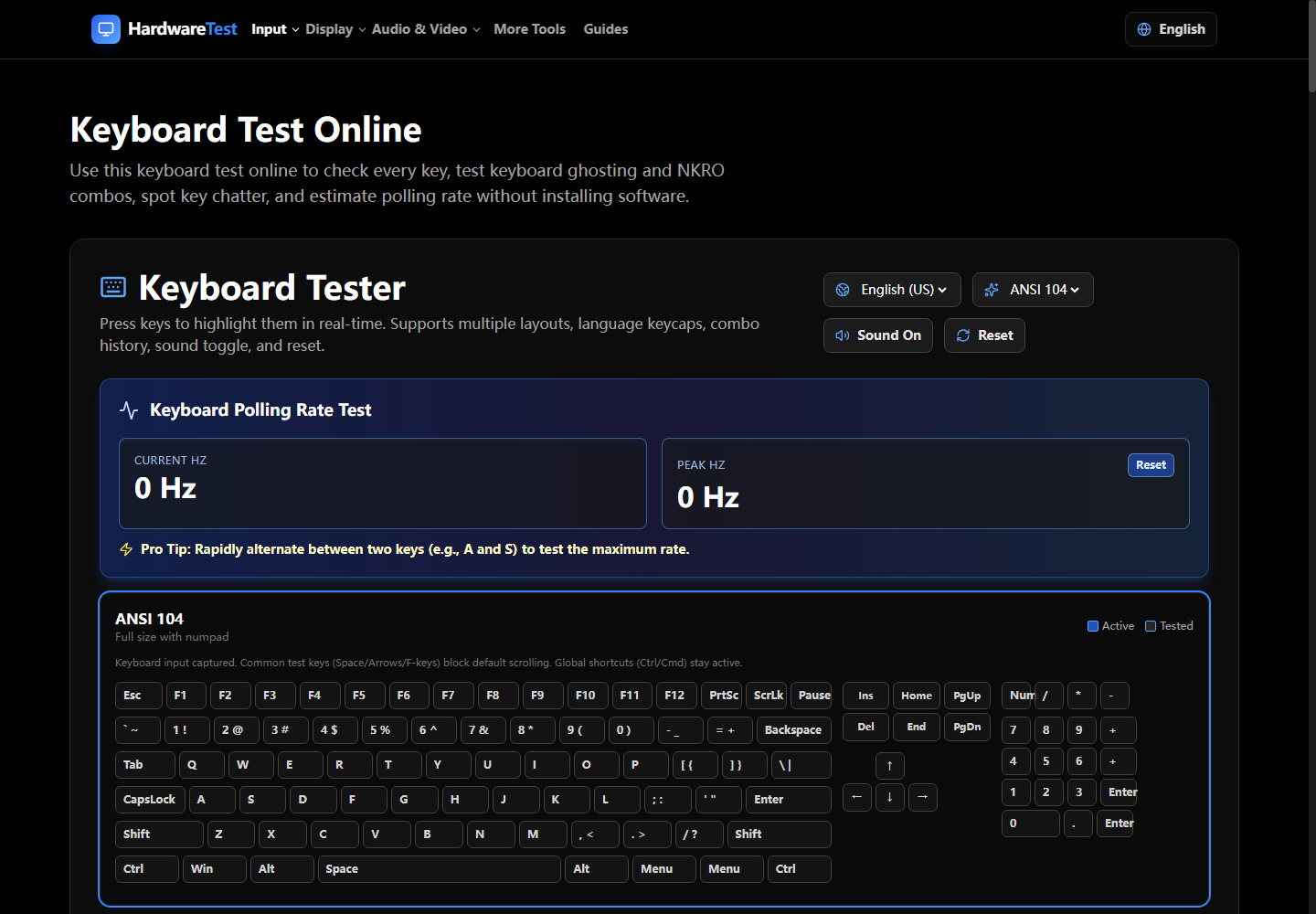
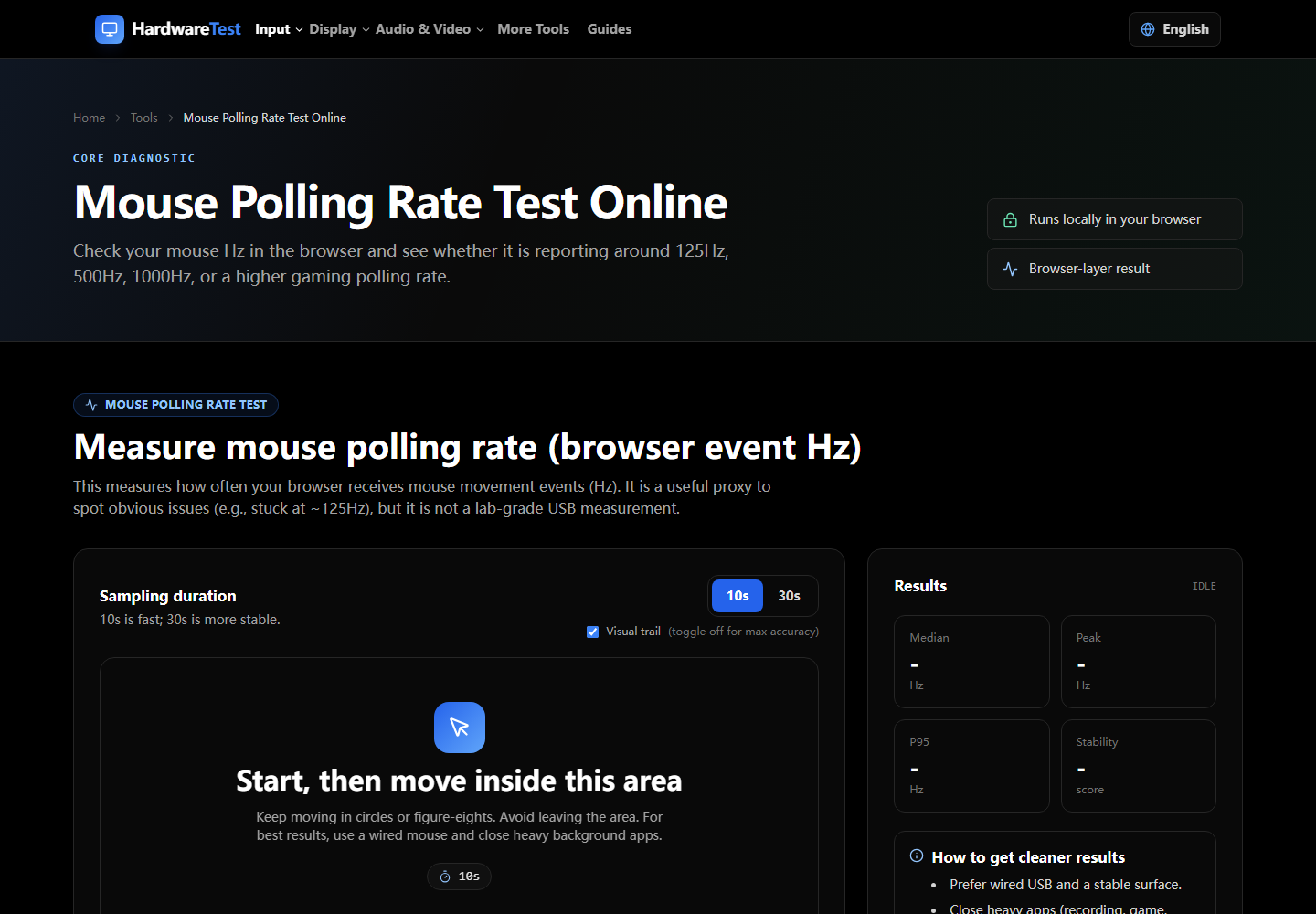
A browser hardware test is an observation made from inside a web page. That distinction sounds small, but it determines what the result means. The page does not sit directly on the USB bus, inside the display controller, or next to a microphone's analog circuit. It sees selected events and media streams after device firmware, the operating system, drivers, and the browser have already processed them.
This guide explains the method used by HardwareTest.org, the controls that make a comparison useful, and the limits that should travel with every result. Use the tools directory to select a focused check. Use the home hardware diagnostic checklist when you need a complete troubleshooting sequence.
The observable path
Most browser tests sit at the end of a chain:
- A physical device creates a signal.
- Device firmware scans, filters, debounces, encodes, or buffers it.
- A wired or wireless connection carries it to the computer.
- The operating system and driver expose a supported interface.
- The browser translates that interface into a web event or media stream.
- JavaScript records timing, values, or state and presents an interpretation.
A result can describe step six and sometimes compare changes earlier in the chain. It cannot automatically isolate the exact delay or failure at every preceding step. For example, a keyboard event timestamp does not reveal switch travel, firmware debounce, matrix scan time, USB scheduling, operating-system queue time, and browser dispatch as separate numbers.
What input tests observe
Keyboard, mouse, touch, pen, and controller tests rely on browser event APIs. They can show whether a supported event reached the active page, which code or button the browser reported, and how successive events were spaced in that browser session.
That makes them useful for questions such as:
- Does this key register at all?
- Does a controller axis return to a stable center?
- Do mouse events become more frequent after changing a device profile?
- Does a touchscreen report the expected contact positions?
- Does the symptom remain in another browser?
They do not read every raw USB report. Browsers may merge pointer updates, reserve system shortcuts, round timestamps, suppress repeated input, or reduce work in a background tab. Wireless interference, vendor software, accessibility tools, game mode, and power management can also change the path before an event reaches the page.
For a meaningful comparison, click inside the test, keep the tab visible, use the same connection and profile, repeat the same motion or key pattern, and run more than one trial. A repeatable change after moving from Bluetooth to a dedicated receiver is evidence about the setup. One isolated peak is not.
What display tests observe
A webpage can draw exact digital color values, gradients, gray fields, lines, motion patterns, and animation frames. These patterns are excellent for visual screening because they create a controlled picture that is easier to inspect than a desktop wallpaper or video.
The Dead Pixel Test can reveal a fixed bright or dark point against contrasting backgrounds. Uniformity patterns can make visible tint or brightness variation easier to compare. A refresh-rate test can estimate the cadence at which the browser receives animation callbacks.
The page cannot verify the light physically emitted by the panel. Color management, HDR tone mapping, panel electronics, viewing angle, room light, brightness controls, scaling, and the graphics path all sit between the requested pixel value and the viewer. A browser pattern is therefore not a calibrated color, luminance, response-time, input-lag, or flicker instrument.
Clean the panel first. Use the native resolution and intended refresh mode. Hold viewing distance and room light steady. Compare another cable and source device when the symptom could come from the graphics path. If a decision depends on an exact measured quantity, use a suitable colorimeter, photodiode, specialist timing instrument, high-speed camera, or professional service.
What audio and camera tests observe
Microphone and camera tests use permission-controlled media APIs. Once permission is granted, a page can list browser-exposed devices, request a stream, show live video, visualize audio levels, and report the resolution or frame rate delivered by that stream.
The delivered stream may not equal the product's advertised maximum. The browser and operating system negotiate a format based on requested constraints, current lighting, USB bandwidth, active applications, privacy settings, and device support. Laptop noise reduction, automatic gain, background blur, virtual cameras, and conferencing software may alter the stream before the page receives it.
Channel playback tests are similarly focused. They can play a known signal to help verify left-right routing and audible output. They do not measure frequency response, distortion, sound-pressure level, hearing safety, or the physical condition of a driver.
Timing is an estimate, not a hardware certificate
Browser timing shares the machine with rendering, garbage collection, extensions, operating-system scheduling, background programs, thermal management, and power saving. Different browsers can use different graphics and event-delivery paths. This is why the method matters more than the apparent precision of a decimal value.
HardwareTest.org timing tools use browser-observed timestamps and label the result accordingly. A useful trial should state:
- browser and operating system;
- connection type and device profile;
- foreground or fullscreen state;
- test duration and repeated runs;
- any changed cable, port, setting, or power mode;
- whether a native tool or second device agreed.
Report the median, stable range, or repeated pattern when available. Do not imply that a browser has measured an internal device clock unless the API actually exposes it.
A simple comparison protocol
Use this protocol whenever the result could influence a purchase, repair, or support request:
- Write a falsifiable symptom statement.
- Record model, connection, browser, operating system, and relevant settings.
- Run the smallest suitable test twice without changing the setup.
- Change one variable and repeat twice.
- Compare a second browser or native operating-system tool.
- Save screenshots, photos, or a short written log.
- Stop if the test requires unsafe volume, heat, pressure, or physical intervention.
Changing one variable is essential. If you update a driver, replace the cable, change the port, disable an extension, and reboot before the next run, you may fix the symptom without learning which change mattered.
Privacy and data boundaries
Raw keyboard presses, pointer paths, microphone audio, camera video, and controller events used by the interactive tools are processed in the browser. They are not uploaded as raw diagnostic records. Ordinary page requests, explicitly started network tests, and aggregate product analytics when enabled can still create network requests. The privacy policy describes the current services and advertising state.
Do not place personal information in a test URL. When sharing a result, inspect the screenshot for account names, notifications, serial numbers, faces, addresses, or other information that is not needed for diagnosis.
How to state a responsible conclusion
Prefer a scoped statement:
The browser received no event from this key in two browsers, and the same key also failed in a text editor on a second computer.
Avoid an unsupported statement:
The website proved the keyboard controller is electrically defective.
The first conclusion records observations and comparisons. The second jumps past layers the browser cannot inspect. A strong browser test narrows the next step; it does not pretend the sandbox is a laboratory.
Primary sources
Technical claims are checked against the following vendor or platform documentation.
- KeyboardEvent — MDN Web Docs
- Pointer events — MDN Web Docs
- MediaDevices: getUserMedia() method — MDN Web Docs
- Window: requestAnimationFrame() method — MDN Web Docs
Ready to Test Your Monitor?
Use our professional dead pixel tester to check your screen for dead pixels, stuck pixels, and display uniformity issues.
Start Dead Pixel Test